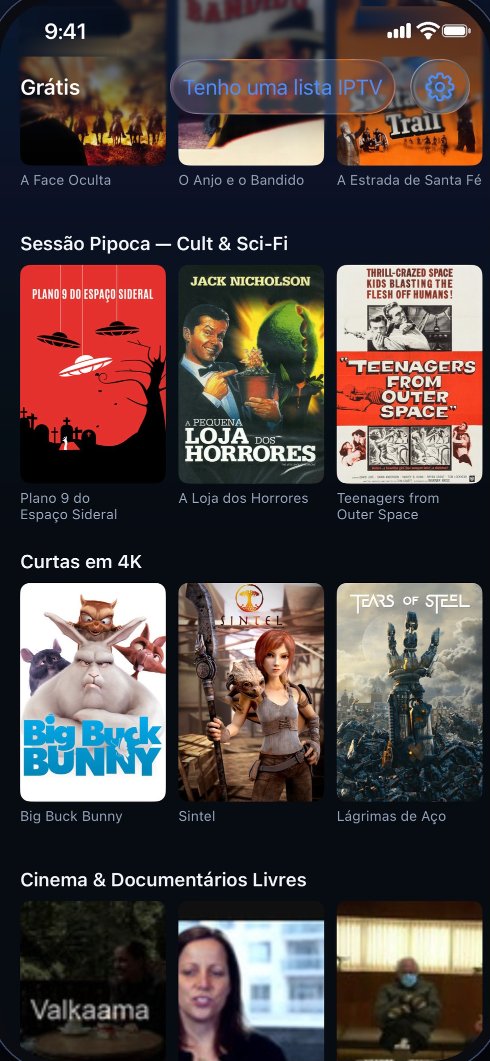
How to install on iPhone
- Open the App Store on your iPhone.
- Search for Antena Play or use the button below.
- Tap Get and open the app.
The app is made for iPhone, with iOS 17 or newer.

How to add your IPTV playlist on iPhone
- Tap I have an IPTV playlist.
- Enter your playlist's server, username and password, or the M3U playlist link.
- Tap Add playlist. If you type an e-mail in the Username field, the app warns you.
Your Antena Play account e-mail never goes in the Username field. Server, username and password are the ones from your playlist. If the app rejects them, check them with whoever provided the playlist.
Step by step, with screenshots
Add your list
Your first list
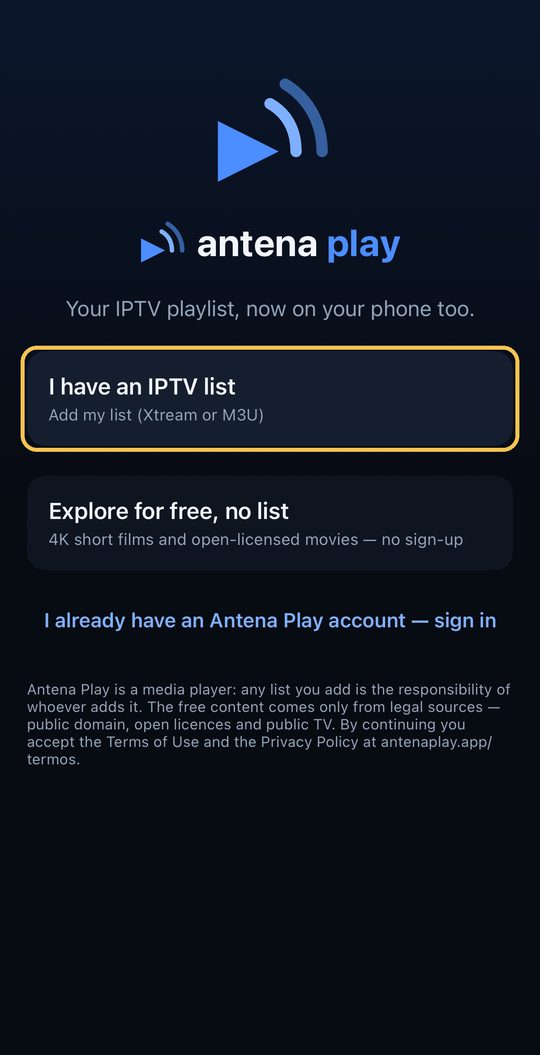
On the first screen, tap I have an IPTV list.
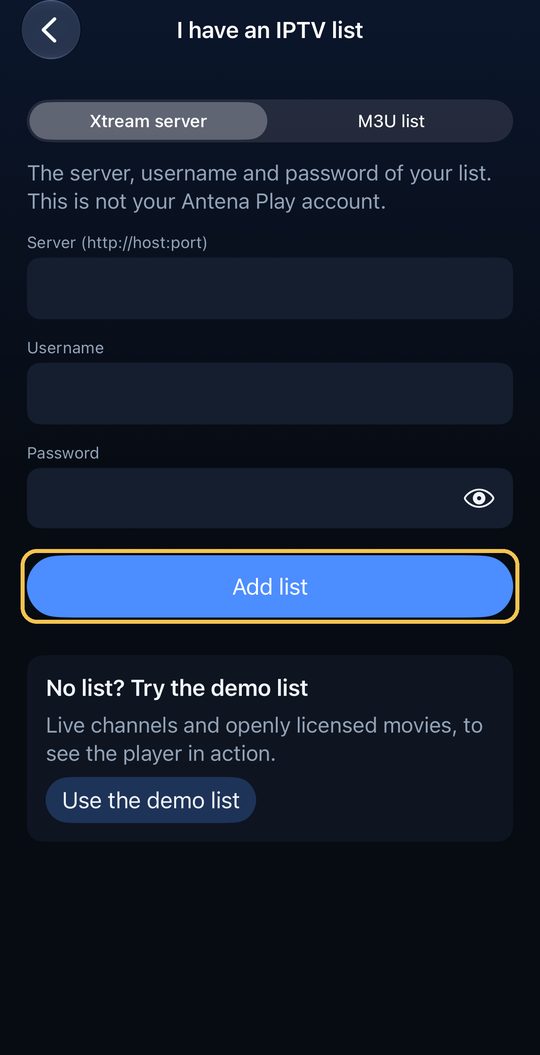
Under Xtream server, fill in your list’s server, username and password and tap Add list. If you type an email in the Username field, the app warns you.
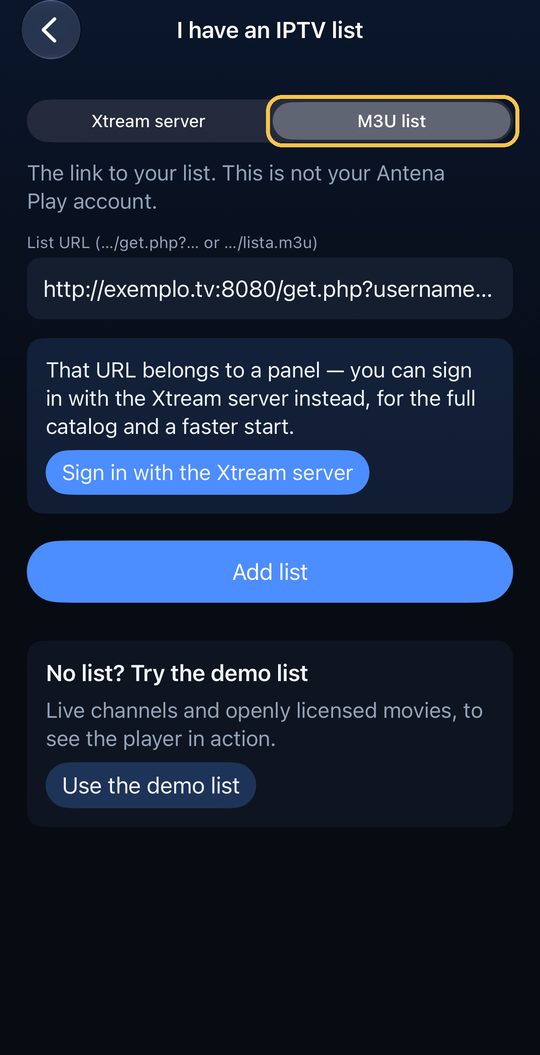
Got a link? On the M3U list tab, paste the whole link and tap Add list. If the link is a panel’s, the app offers to sign in with the Xtream server instead.
Another list, with the app in use
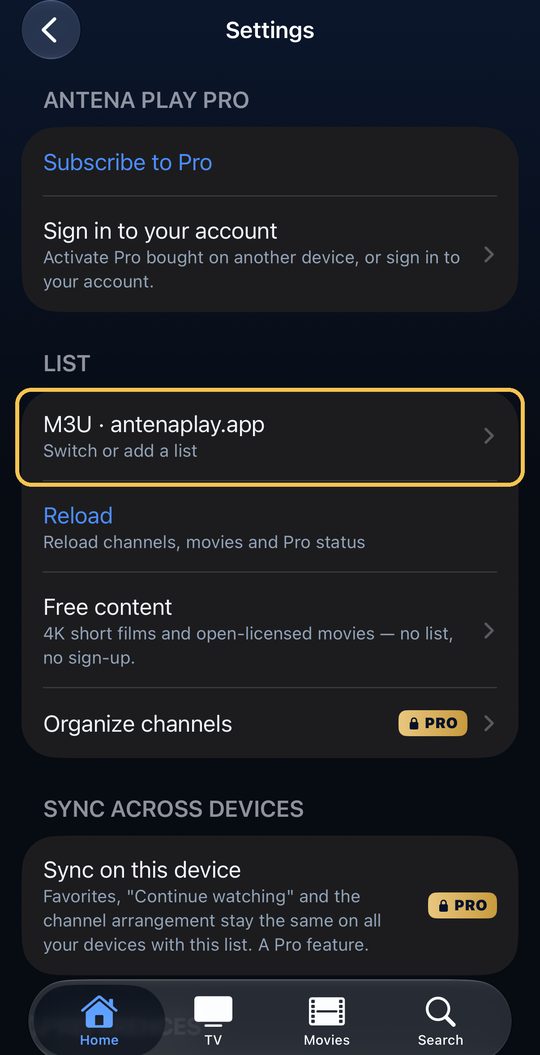
With the gear at the top of Home, in Settings, under List, tap your list (Switch or add a list).
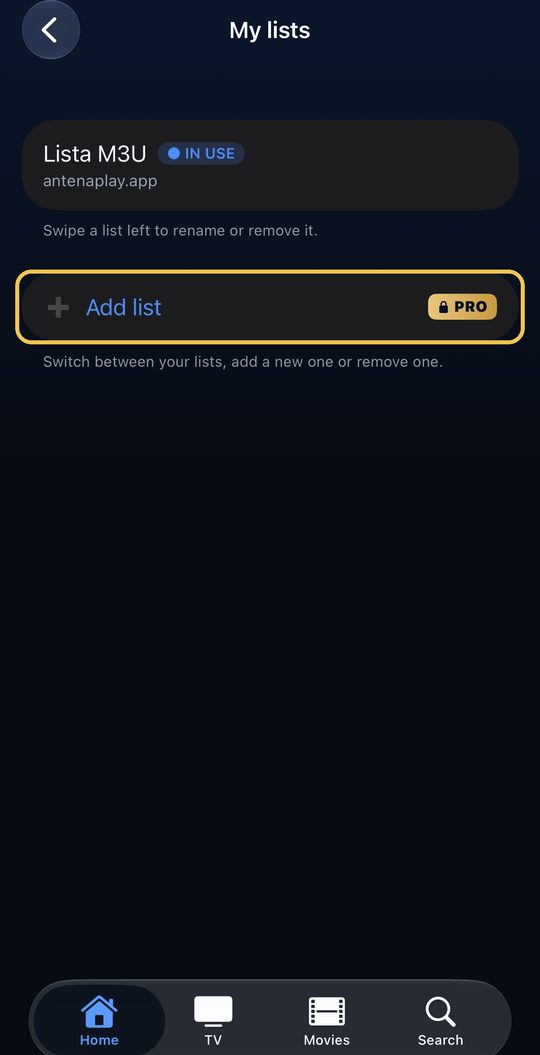
In My lists, tap Add list and fill it in like the first one. More than one list is a Pro feature.
Went into the free content and can’t find where to add your list? With the gear, in Settings, tap Your list. The details asked for are your list’s, not your Antena Play account’s.
Sign in to your account
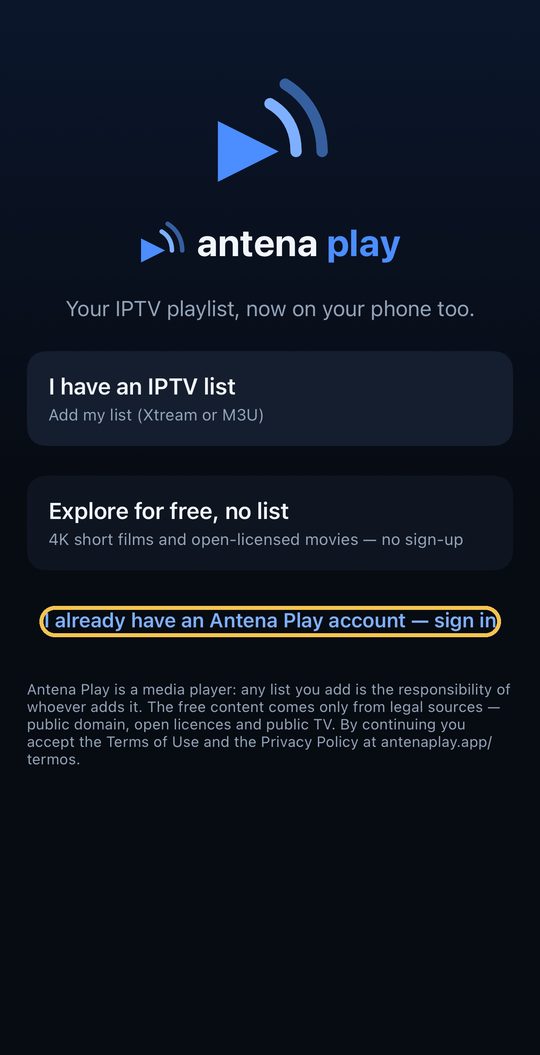
On the first screen, tap I already have an Antena Play account.
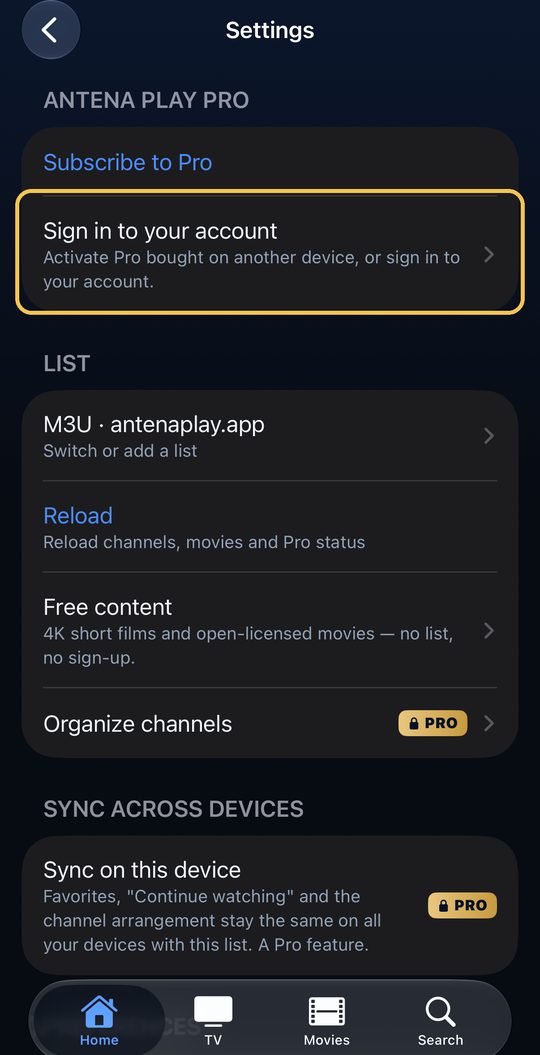
With the app in use, go to Settings → Sign in to your account.
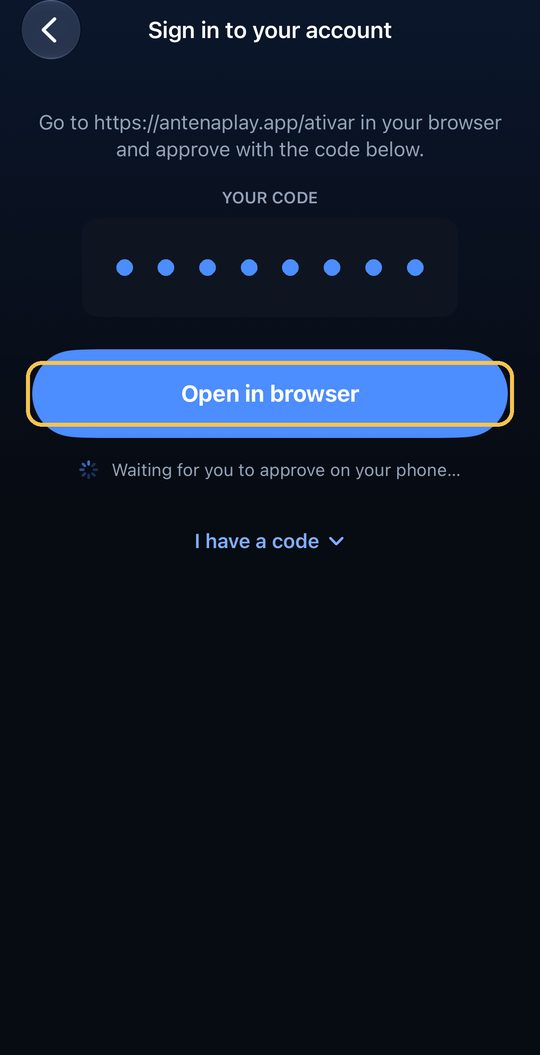
The app shows a code (the dots in the picture). Tap Open in browser: the code goes along. Already signed in on the website? Tap I have a code and type the code from antenaplay.app/conta, Screens tab, Connect a TV.
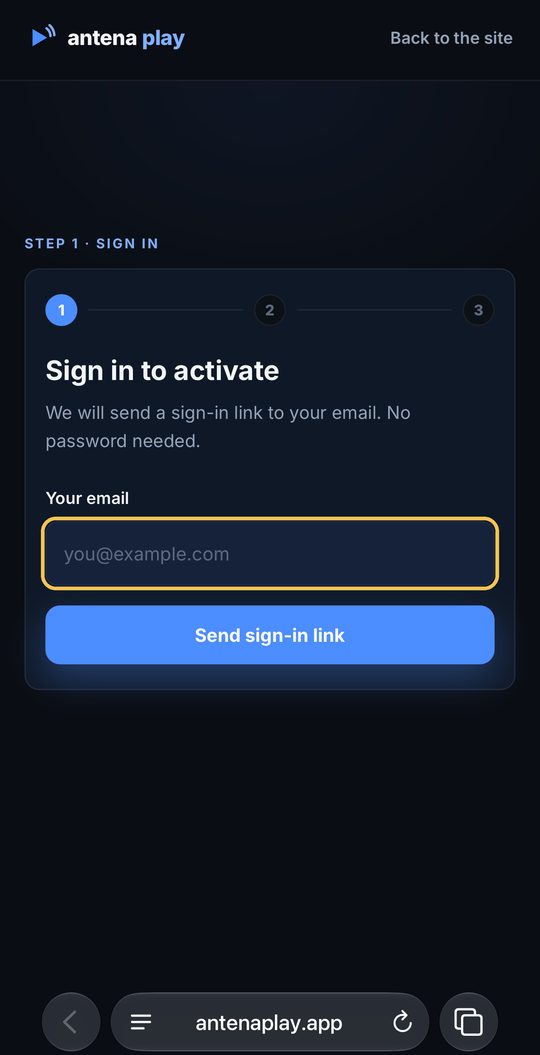
In the browser, enter your email and tap Send sign-in link. Open the link that arrives in your email. No account yet? It is created by that link.
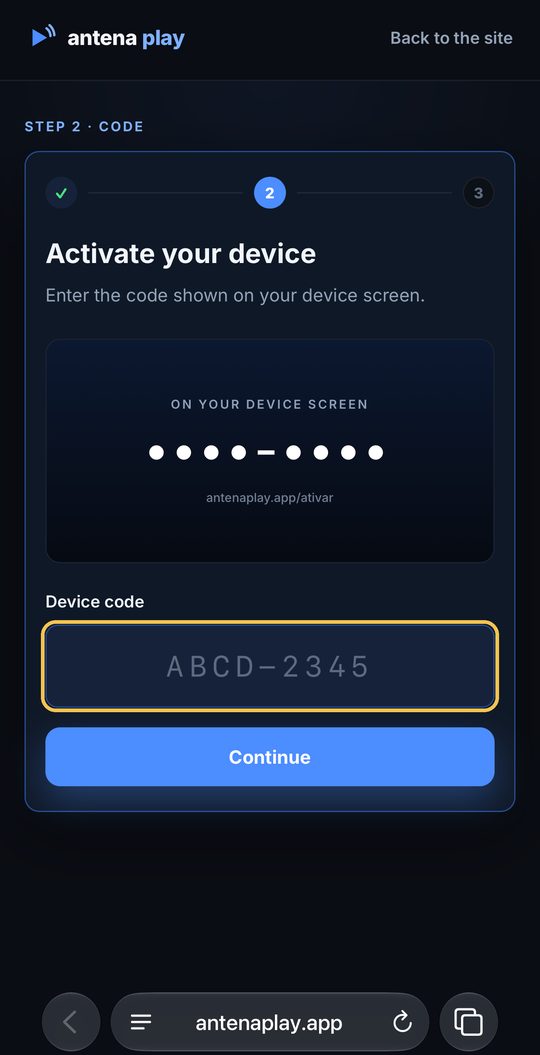
Opened the website by its address, and not from the app’s button? After the email, type the code the app shows and tap Continue.
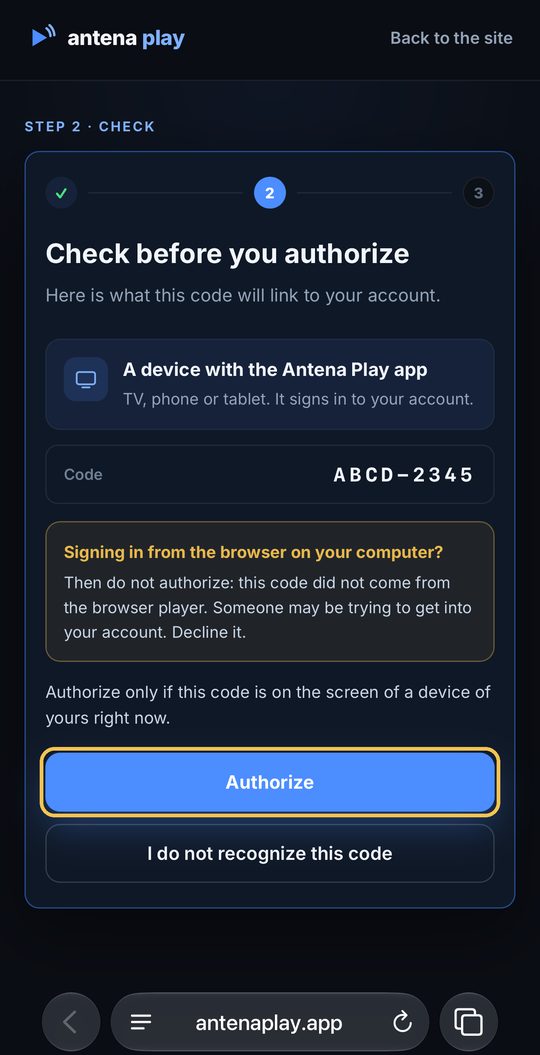
Check what the code will link to your account and tap Authorize: the iPhone signs in on its own. Don’t recognize the code? Tap I do not recognize this code.
Subscribe to Pro
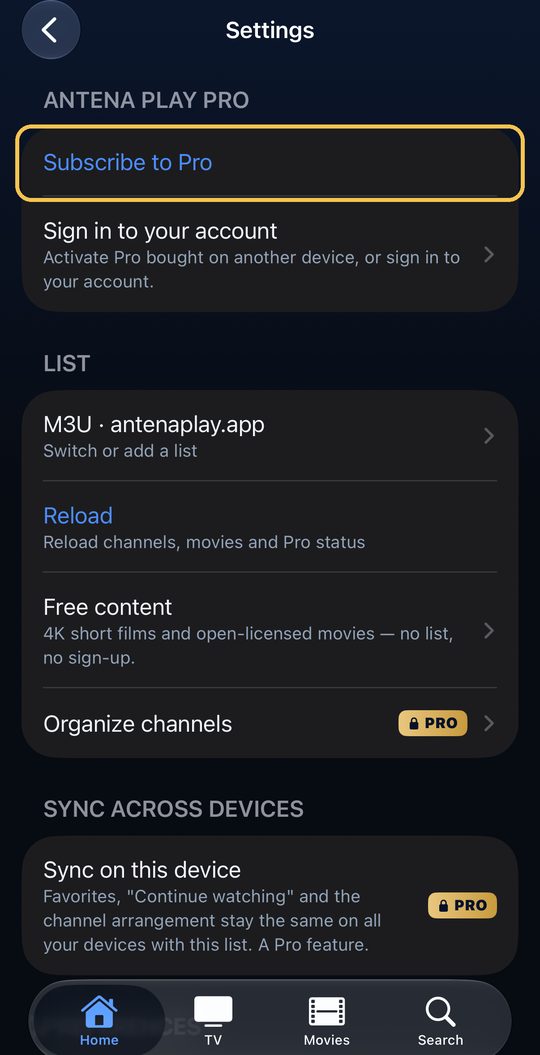
In Settings, tap Subscribe to Pro.
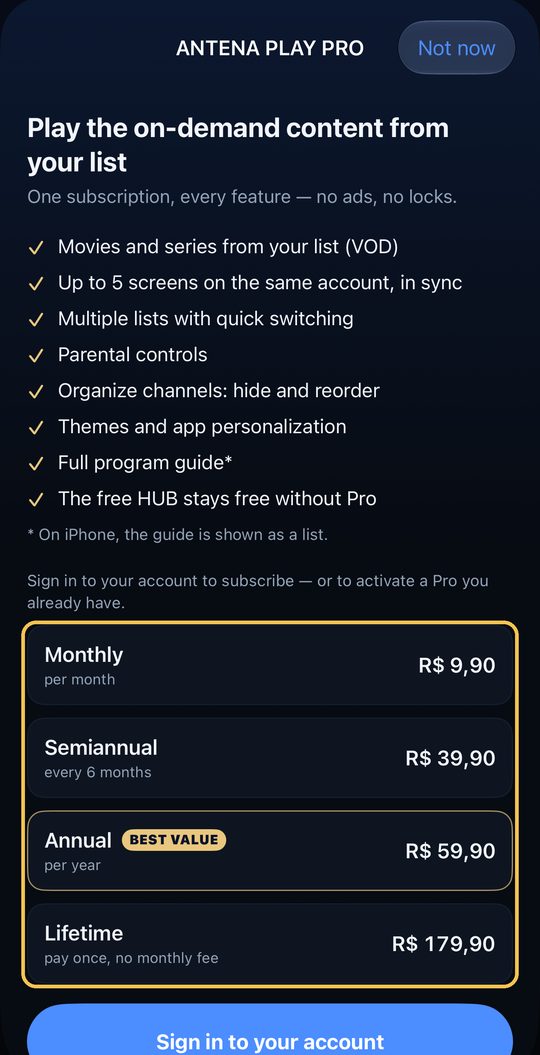
The Pro screen shows the plans, with the App Store price. Without an account connected, tap Sign in to your account, just below, and follow the steps above. The prices in the picture are the Brazilian App Store’s; in another country, the App Store shows the price there.
With your account connected, choose a plan and subscribe through the App Store. Already subscribed on the website or on Android? Don’t subscribe again: sign in with the same email, and Pro already works on your iPhone. New iPhone? Tap Restore purchases.
On iPad
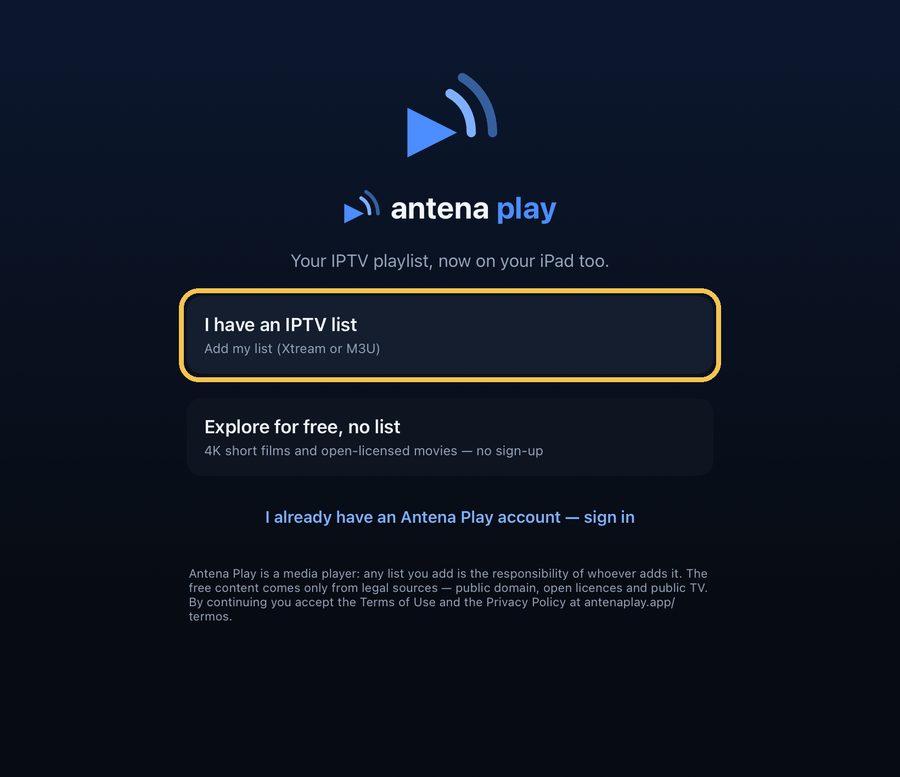
The first screen is the same as on iPhone, in a column in the middle: I have an IPTV list or I already have an Antena Play account.
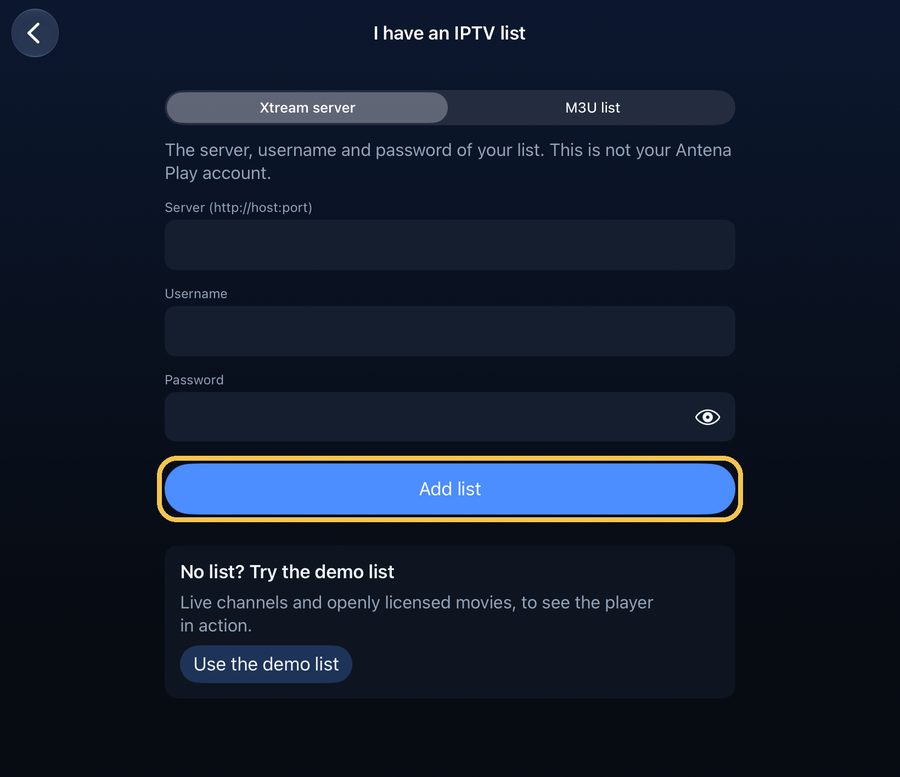
So is the list form: fill it in and tap Add list.
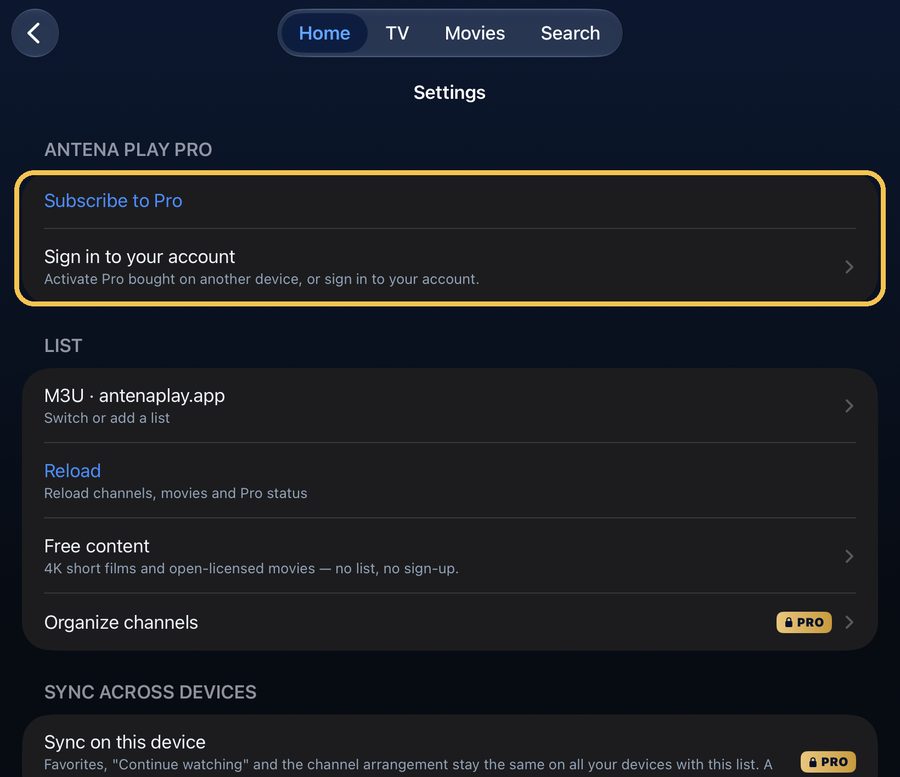
In Settings, the tabs sit at the top, and Subscribe to Pro and Sign in to your account are still first.
On iPad, Pro also includes Multiview, on the TV tab, with up to two channels at once.
What you can do on iPhone
Free
Live TV from your playlist by category, with artwork, search and favorites, plus the free, legal catalog of classics and 4K shorts, with no sign-up.
With Pro (try it free for 7 days)
Movies and series from your playlist, the program guide, organize channels, parental controls, more than one playlist and sync with your TV and other screens, up to 5 on one account. You subscribe through the App Store.
What you need
An iPhone with iOS 17 or newer. A stable connection and an IPTV playlist of your own, in Xtream or M3U format.
What the app does not do
Antena Play is a media player: it does not sell, provide or recommend playlists, channels or servers. It opens the playlist that you already have the right to use, and whoever adds a playlist is responsible for it.
Frequently asked questions
Do I need to install anything outside the App Store?
No. Antena Play is on the App Store: just search, tap Get and open it.
I subscribed to Pro on iPhone. Does it work on TV?
Yes. The subscription lives in your Antena Play account: sign in with the same account on the TV and Pro shows up there, up to 5 screens.
Does the app come with channels?
No. Antena Play is a player: you add the playlist you already have. With no playlist, the free, legal catalog opens with no sign-up.
Does it work with M3U playlists?
Yes. The app accepts M3U playlists, by pasting the link, and Xtream servers, with server, username and password.
Want the steps for every device? See How to install and How to use. Still have a question? The Help center has the answer.
© 2026 Antena Play · A MyProjects Studio product · B.B.C Suporte e Consultoria em Tecnologia Ltda
How to install on each device · How to use · Help · Terms of Use · Privacy Policy · antenaplay.app