antena play
Getting started

How to use Antena Play

The app has two ways in: your IPTV list and your Antena Play account. See what each one is for and where each button is on your device.

Your list and your account are different things

Most sign-in questions start here. The list is what you watch; the account is what unlocks Pro. One does not replace the other, and each goes in a different place in the app.

To watch

Your IPTV list

What it is
A playlist you have the right to use, from a service you subscribe to or one you put together yourself, in one of two formats: server, username and password (Xtream) or a list link (M3U).
What it does
Brings your list's content into the app. It is stored only on the device, encrypted, and never goes through our servers.
Where it goes
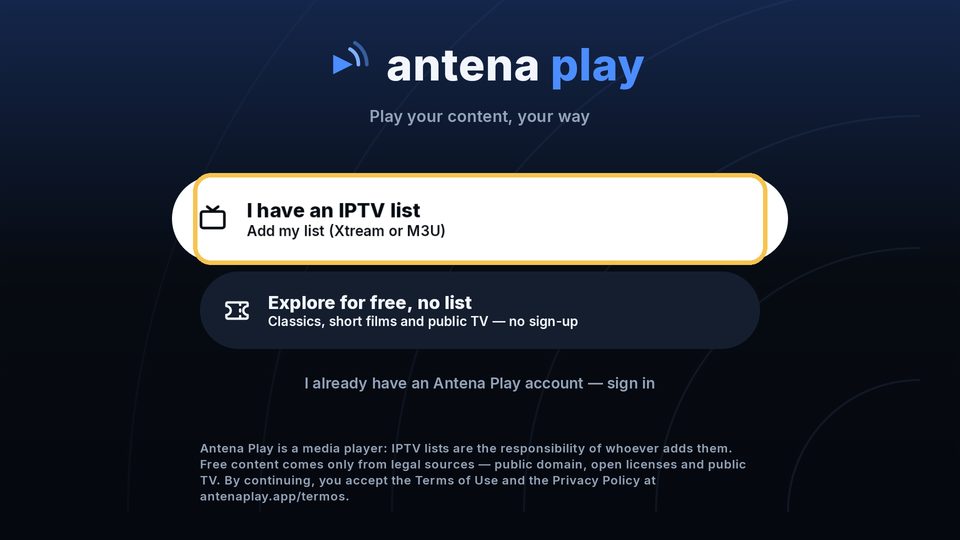
On the app's first screen, under I have an IPTV list.
For Pro

Your Antena Play account

What it is
Your email, with no password: you sign in on the website with a link sent to your inbox.
What it does
Unlocks Pro and carries your subscription to your devices, up to 5 screens. You do not need it to watch your list or the free catalog.
Where it goes
On the app's first screen, under I already have an Antena Play account, or in Settings. The TV shows a code, and you confirm it on your phone or computer at antenaplay.app/ativar.

Your account email never goes in the list's Username field. The username and password are your list's. If the app rejects them, check them with whoever provides the list: that error has nothing to do with your Antena Play account.

From start to Pro, in four steps

  1. Install the app

    Get it from your device's store or open the player in your browser. Step-by-step instructions for each one are in How to install.

  2. Add your list

    Choose I have an IPTV list, enter your list's details and confirm with Add list. No list yet? The free catalog opens with no list and no sign-up.

  3. Connect your account

    Only needed for Pro. In Settings, choose to sign in: the app shows a code, which you confirm at antenaplay.app/ativar after signing in with your email. You type the email on your phone or computer, never on the TV.

  4. Subscribe to Pro

    With your account connected, subscribe through Google Play on Android and the App Store on iPhone. On other devices, you subscribe on the website, at antenaplay.app/conta. The subscription stays in your account and works on every connected device.

What's new in version 2

Already available on Android, iPhone, Roku and in the browser. On LG and Samsung, it arrives with the update under review in their stores.

Sync across devices

Favorites, “Continue watching” and your channel layout stay the same on all your devices with the same list. Turn it on in Settings, Sync across devices, Sync on this device. It is a Pro feature and needs your account connected. The data is encrypted: only your devices with the same list can read it.

Favorites everywhere

Besides channels, movies and series can be favorited too: on the title's page, use Favorite. They show up in the Favorites row.

List and account, each in its place

The first screen separates your IPTV list from your Antena Play account: I have an IPTV list to watch and I already have an Antena Play account for Pro, with no need to add the list first.

Semiannual plan

Pro is now also available for 6 months, on the website, on iPhone and on Google Play.

Step by step on each device

Button names vary from one app to another. Each card follows the version currently published in the store, shown under its name.

Android TV and Google TV

Version 2.0.2 · also boxes and sticks without Google Play

Add your list

On the first screen, choose I have an IPTV list. Under Xtream server, fill in server, username and password; under M3U list, paste the link. Confirm with Add list. If you type an email in the Username field, the app warns you and offers Sign in to my Antena Play account.

Sign in to your account

On the first screen, choose I already have an Antena Play account; later on, open Settings and, in the Antena Play Pro section, choose Sign in to your account. The TV shows a QR code and the TV code: point your phone's camera at the QR code or open antenaplay.app/ativar, sign in with your email and confirm.

Subscribe to Pro

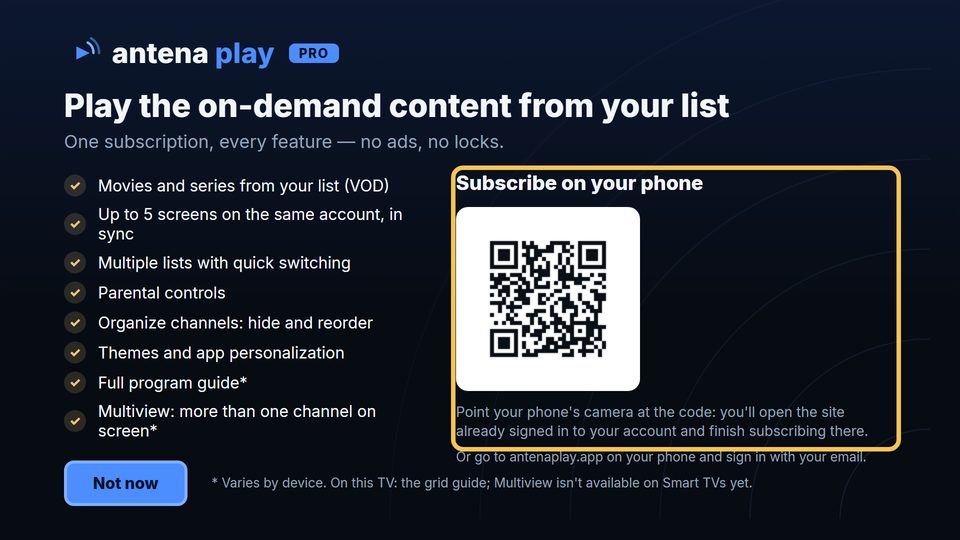
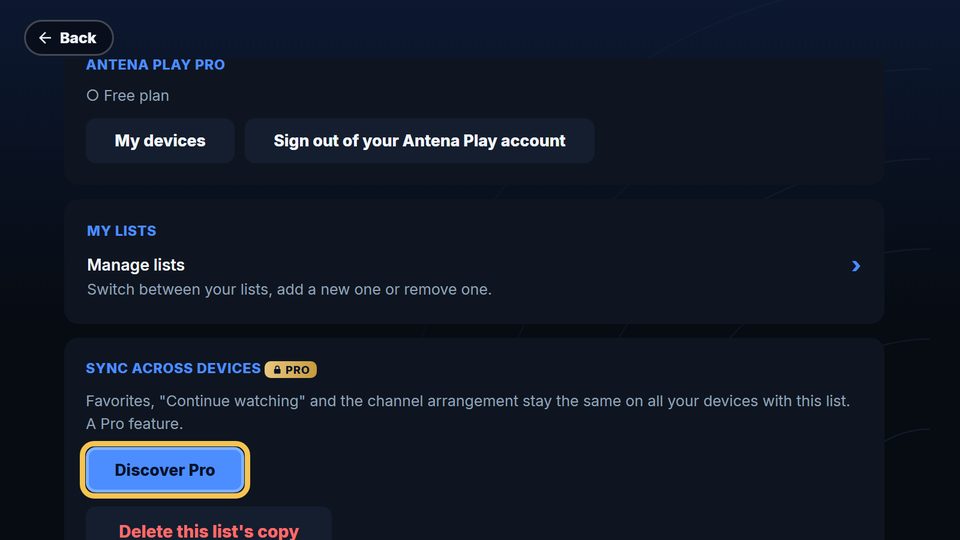
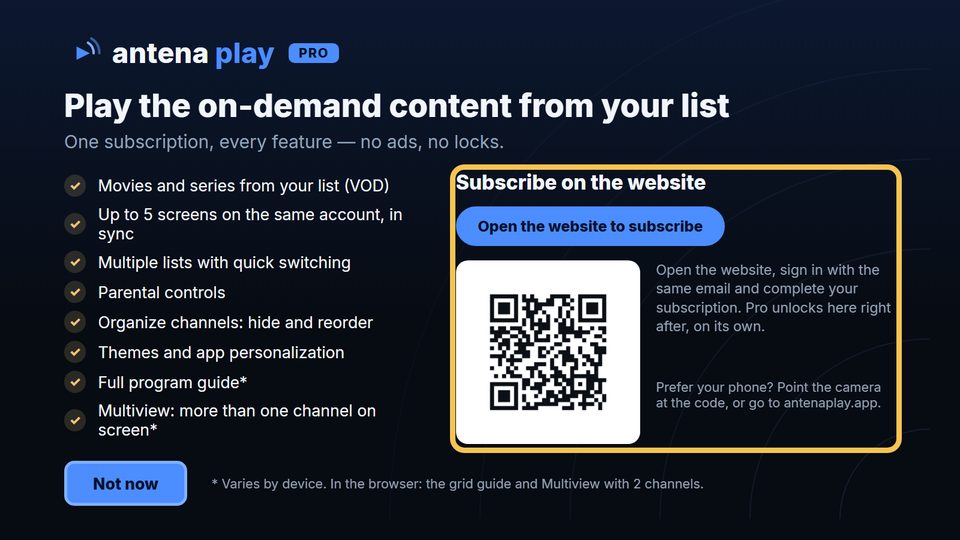
With your account connected, in Settings, Antena Play Pro section, choose Discover Pro, pick a plan and pay through Google Play. On boxes and sticks without Google Play, the screen shows a QR code (Subscribe on your phone) and you finish on the website.

Sign out

Sign out of your Antena Play account, in the Antena Play Pro section, disconnects the account and frees the device's slot. Sign out of your lists, at the end of Settings, removes the lists saved on the device, with their favorites and progress, and keeps the account connected. The app asks you to confirm.

Step by step, with screenshots

Add your list
Your first list
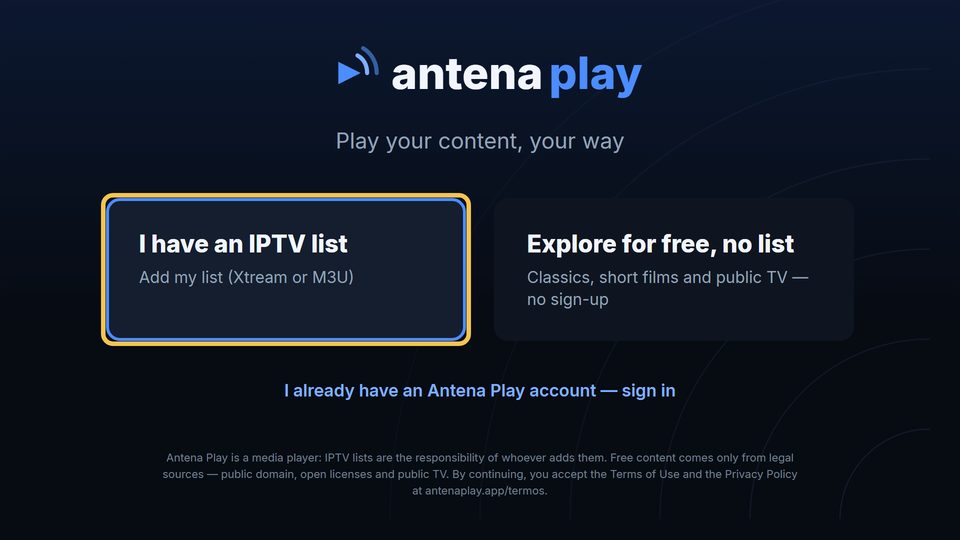
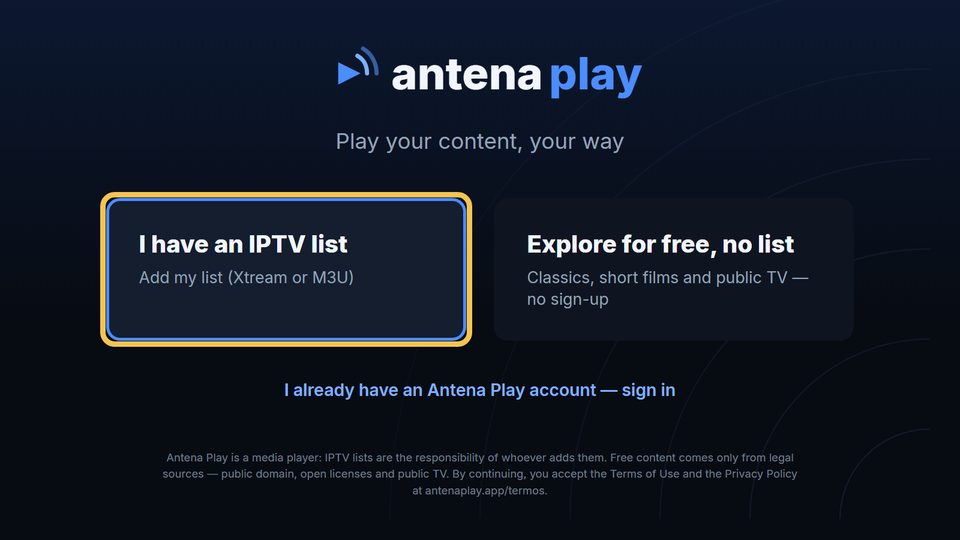
  1. The app’s first screen on the TV, with I have an IPTV list highlighted

    On the first screen, choose I have an IPTV list and press OK.

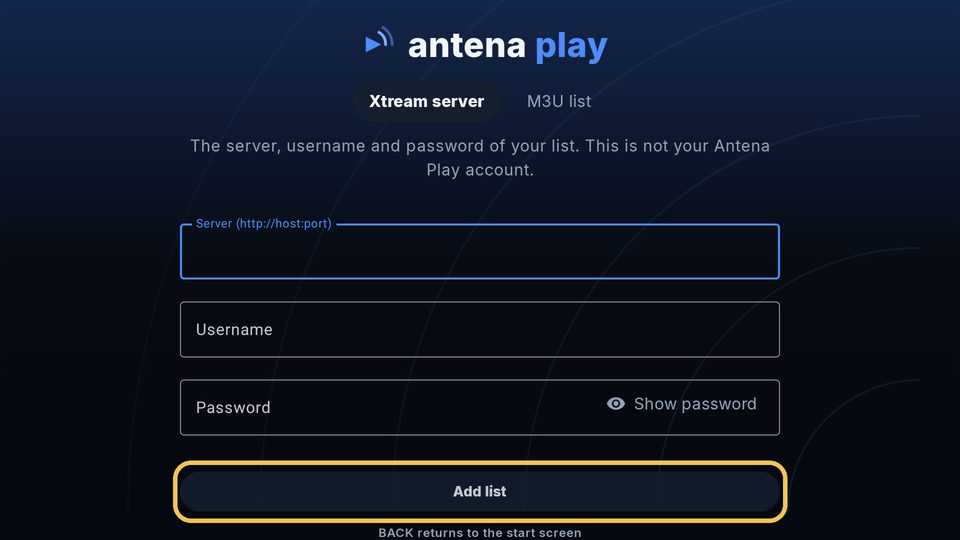
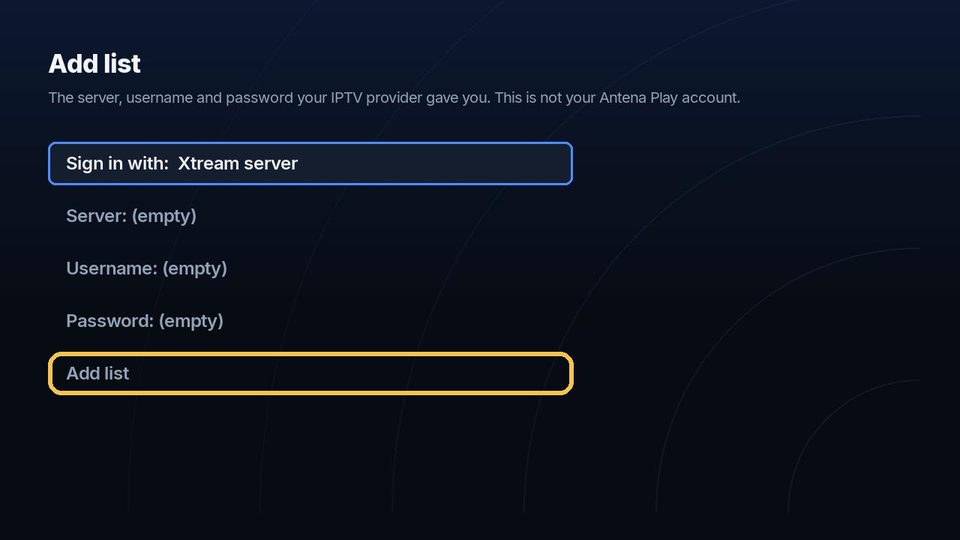
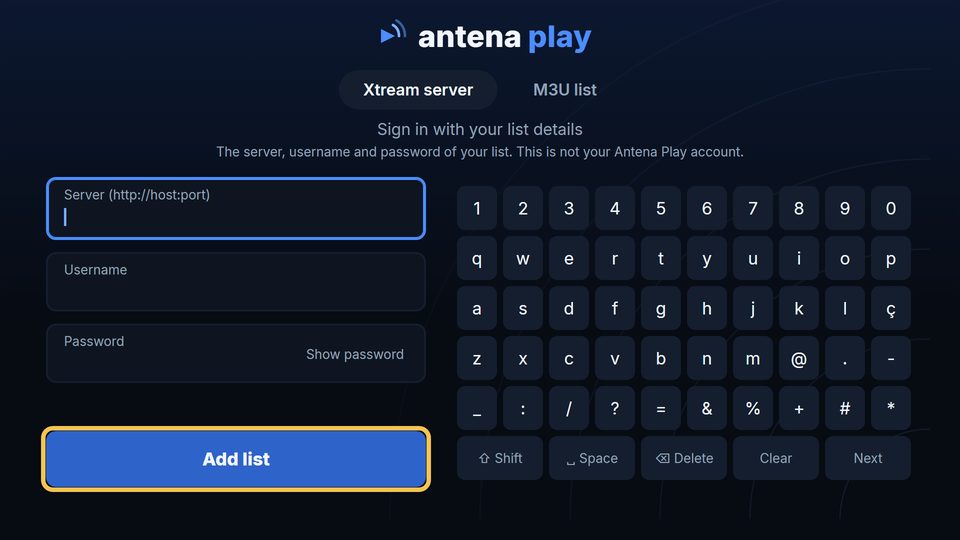
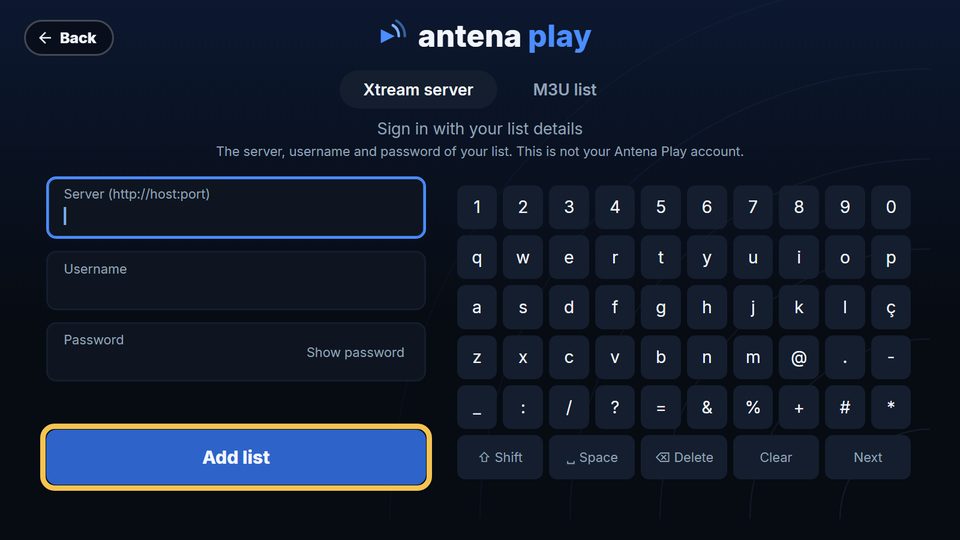
  2. The Xtream server form on the TV

    Under Xtream server, fill in the server, username and password your provider gave you (OK opens the keyboard) and choose Add list.

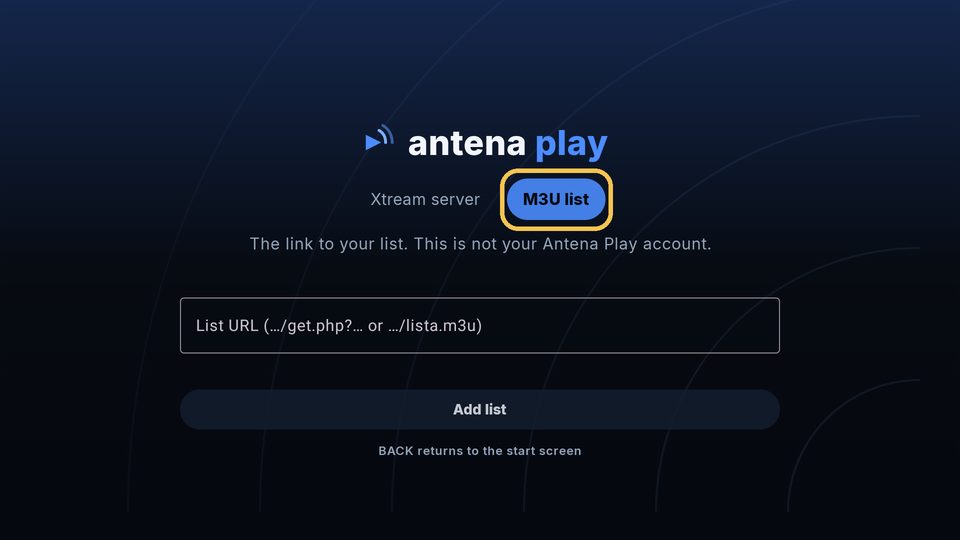
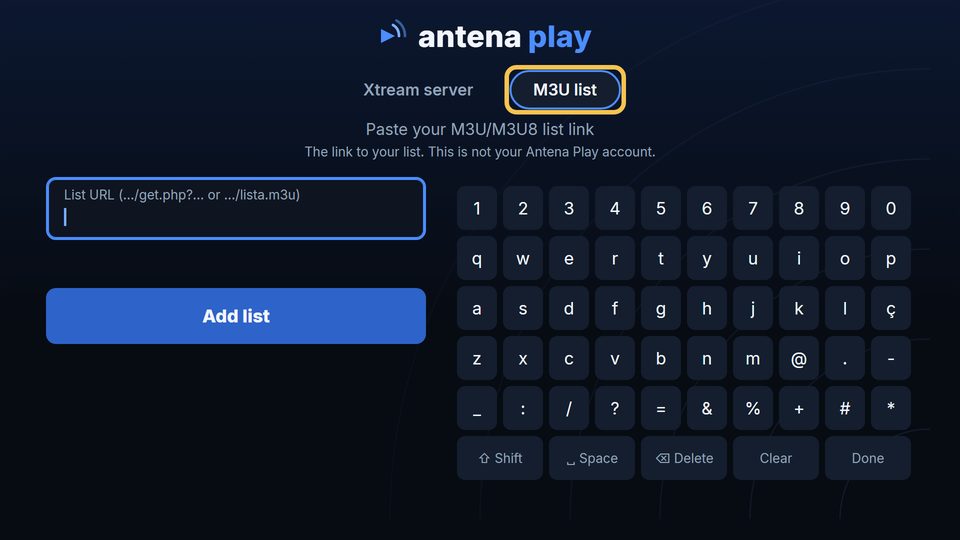
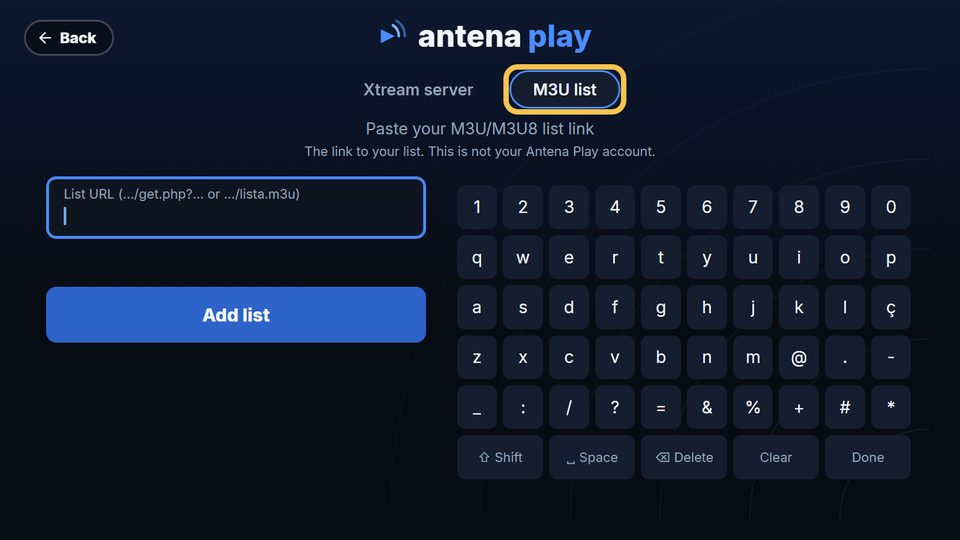
  3. The M3U list option on the TV, with the link field

    Got a link instead? Go up to M3U list, press OK, type the whole link and choose Add list.

Another list, with the app in use
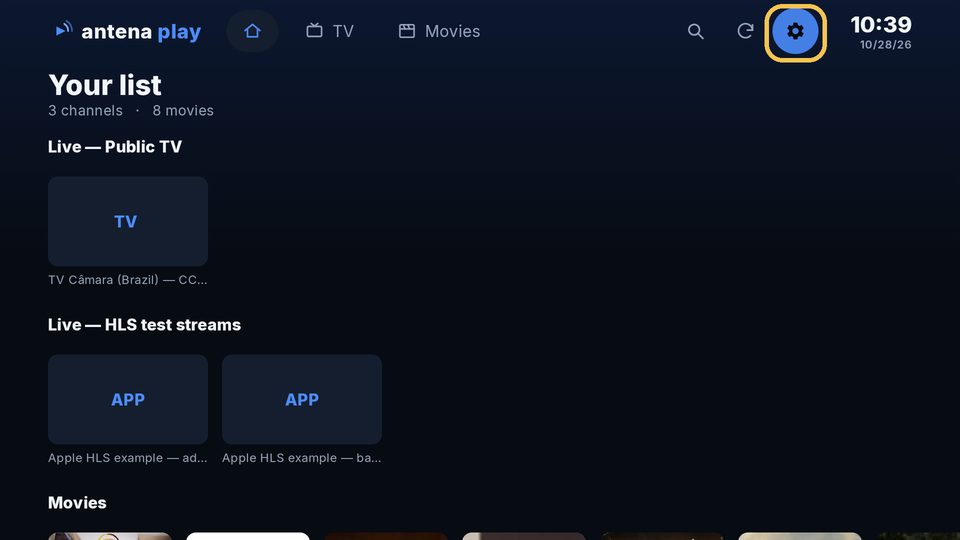
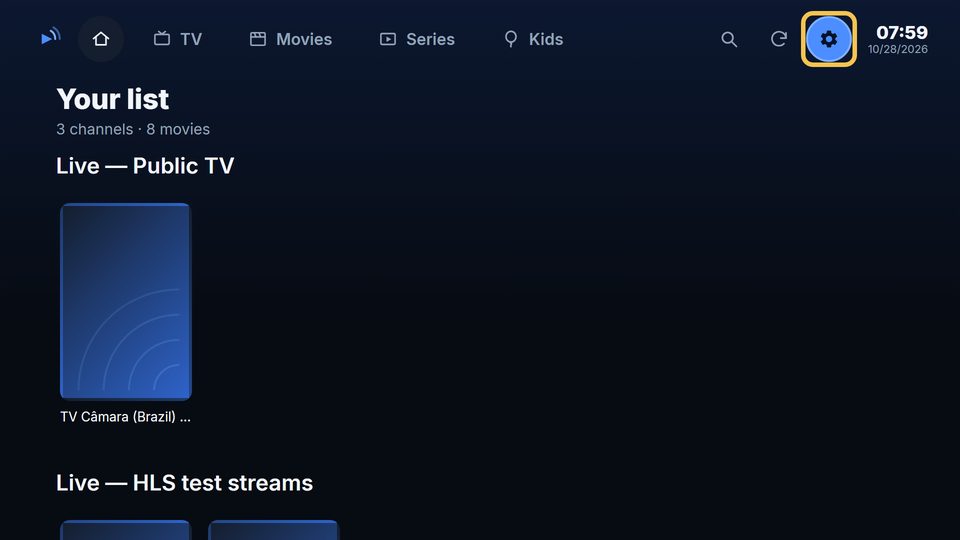
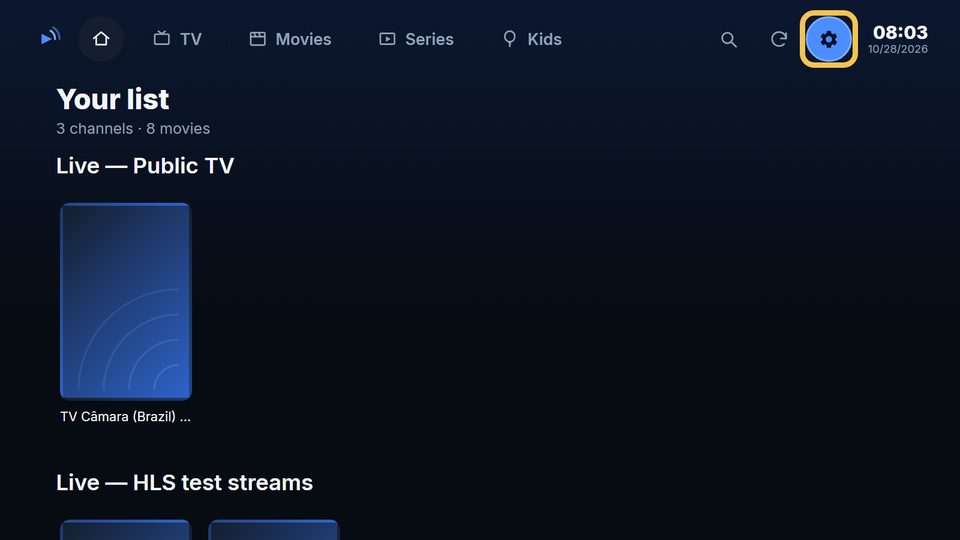
  1. The TV home screen, with the Settings gear highlighted

    At the top of the screen, go to the gear and press OK.

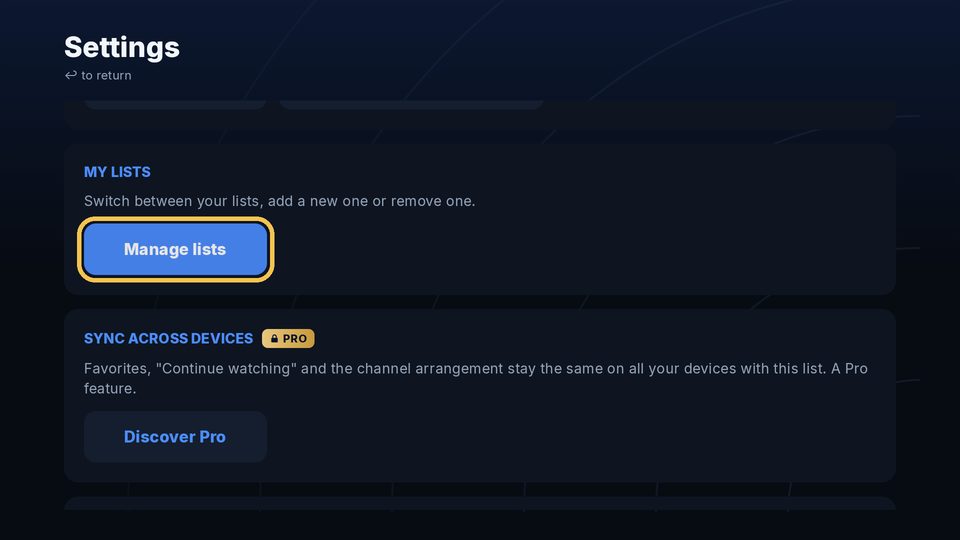
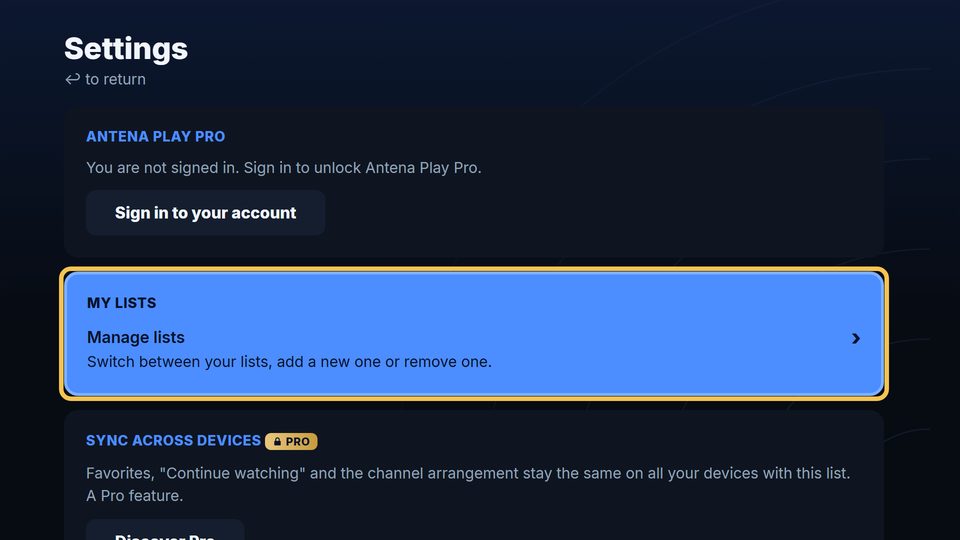
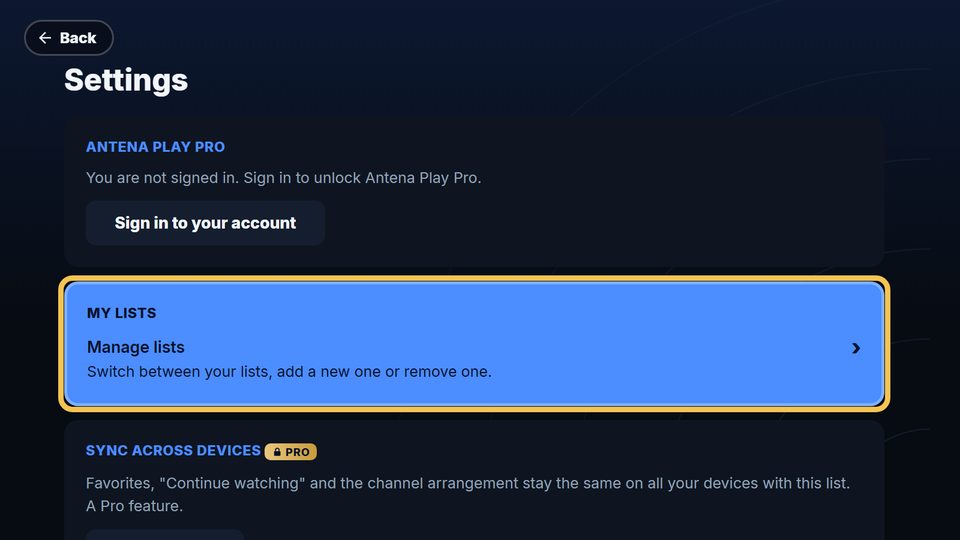
  2. The TV Settings, with Manage lists highlighted

    Under My lists, choose Manage lists.

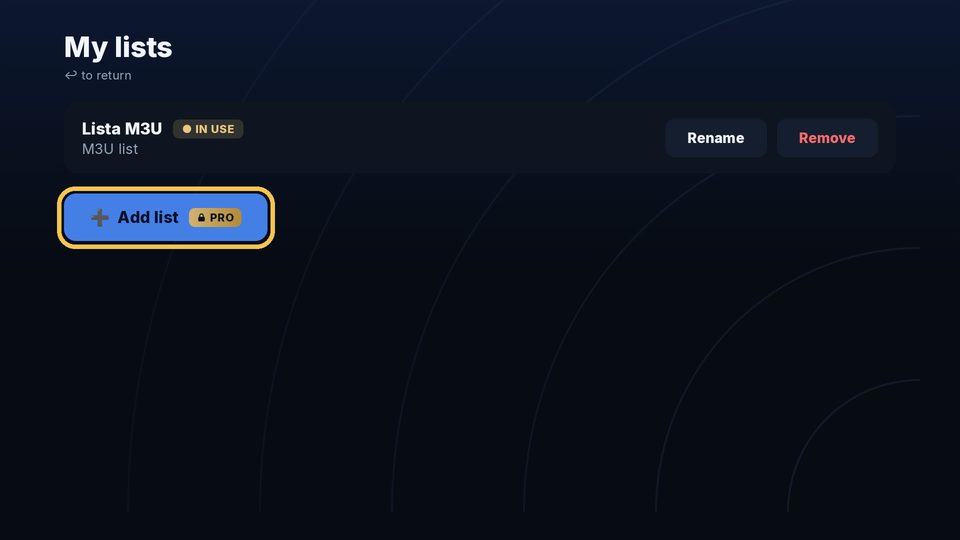
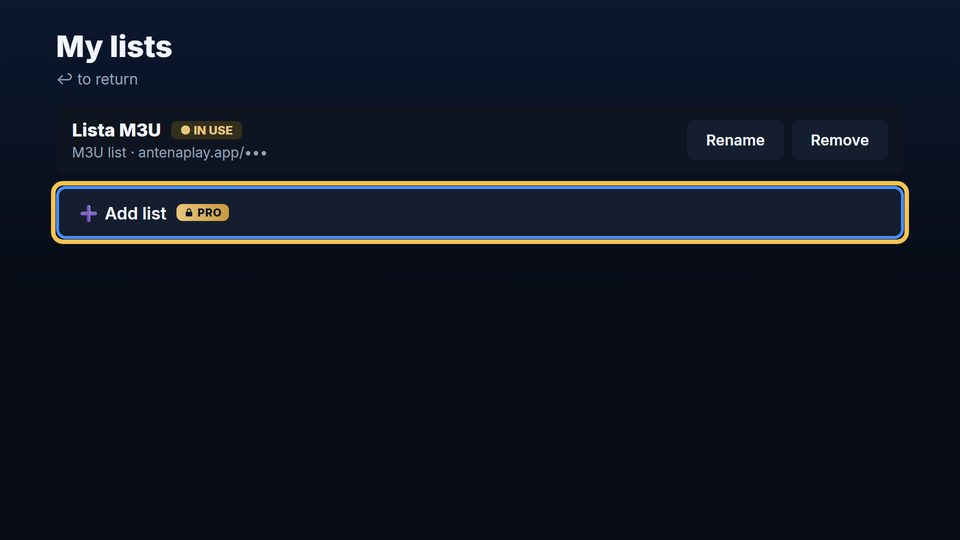
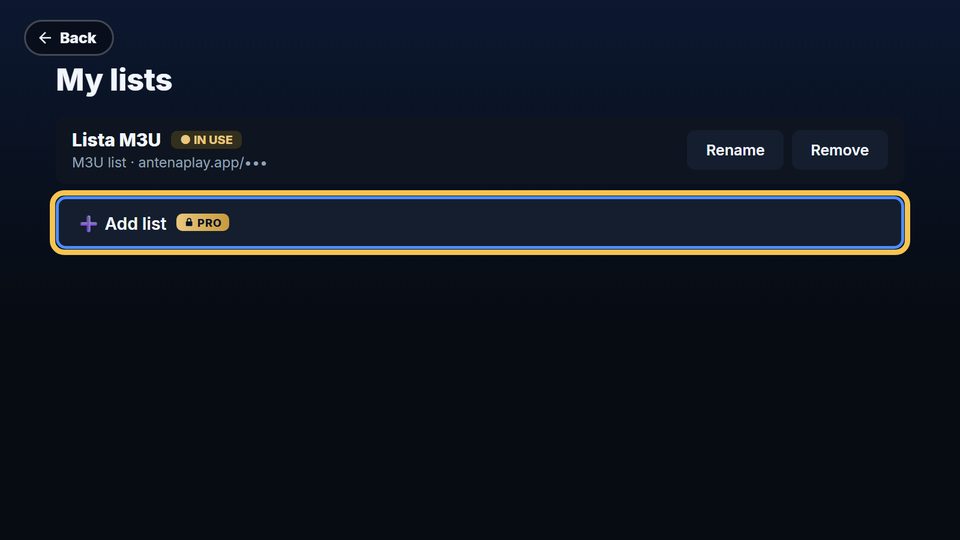
  3. My lists on the TV, with Add list highlighted

    Choose Add list and fill it in like the first one. More than one list is a Pro feature.

Went into the free content? The I have an IPTV list button at the top opens the same form. The details asked for are your list’s, from your provider, not your Antena Play account’s.

Sign in to your account
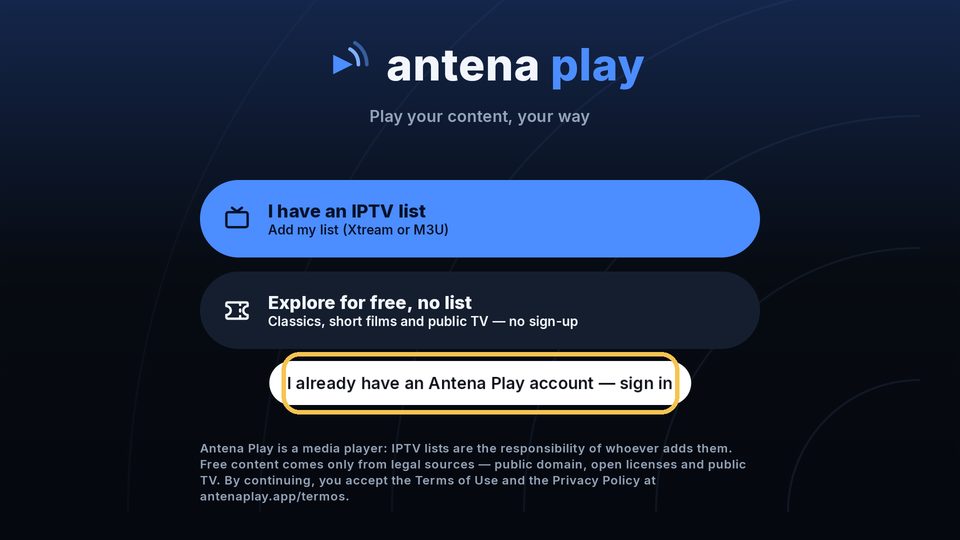
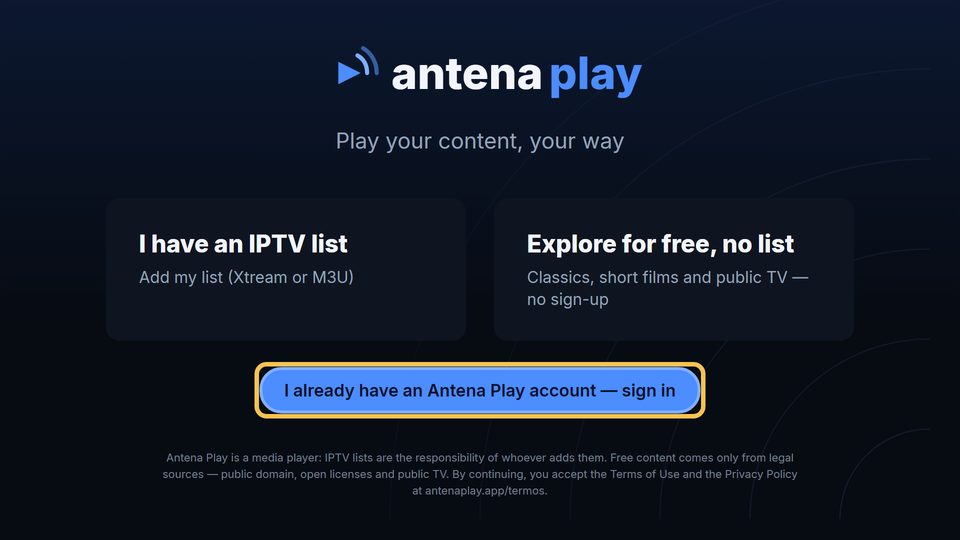
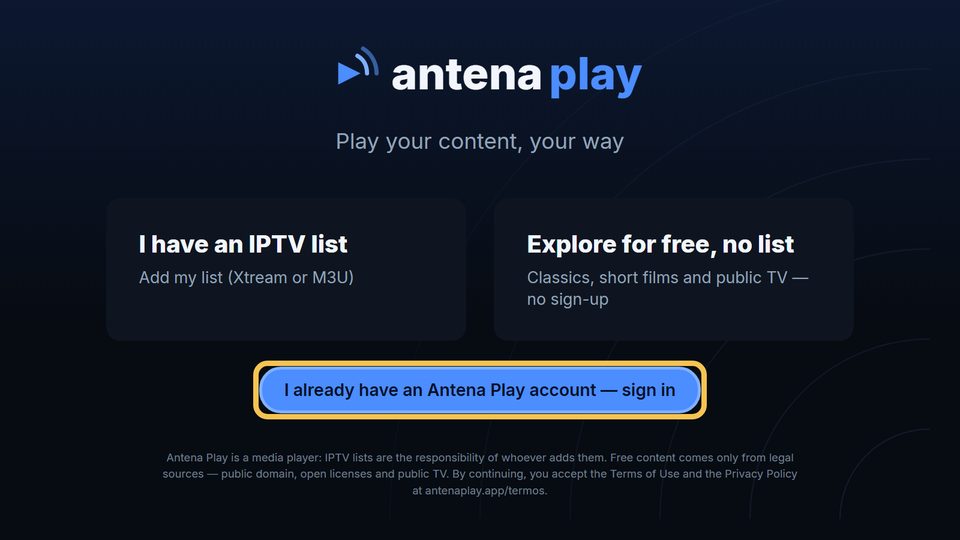
  1. The app’s first screen on the TV, with I already have an Antena Play account highlighted

    On the first screen, choose I already have an Antena Play account.

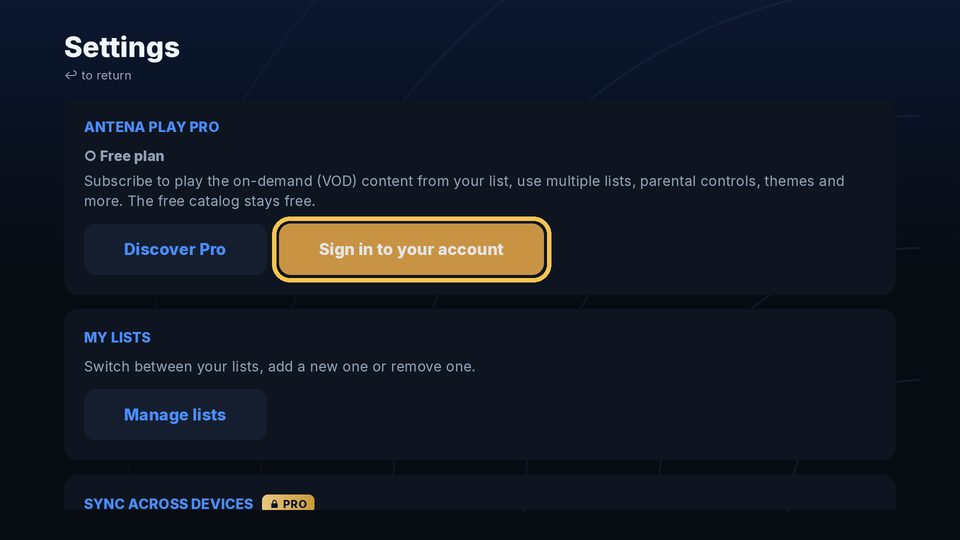
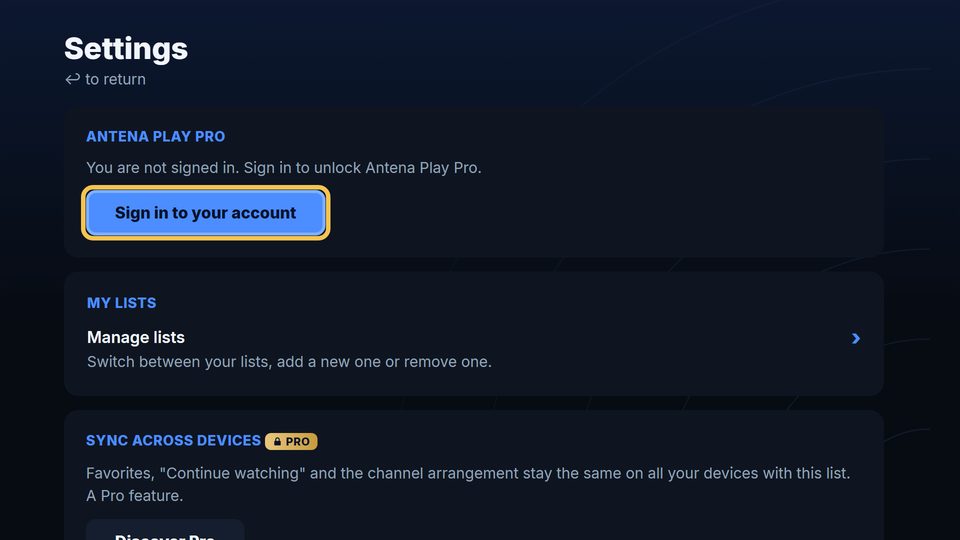
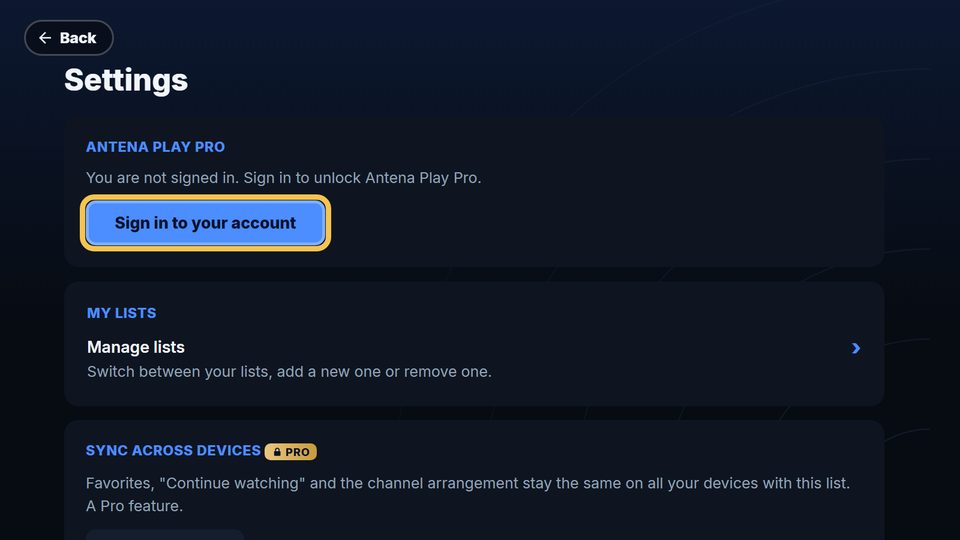
  2. The TV Settings, with Sign in to your account highlighted

    With the app in use, under the gear, in Settings, choose Sign in to your account.

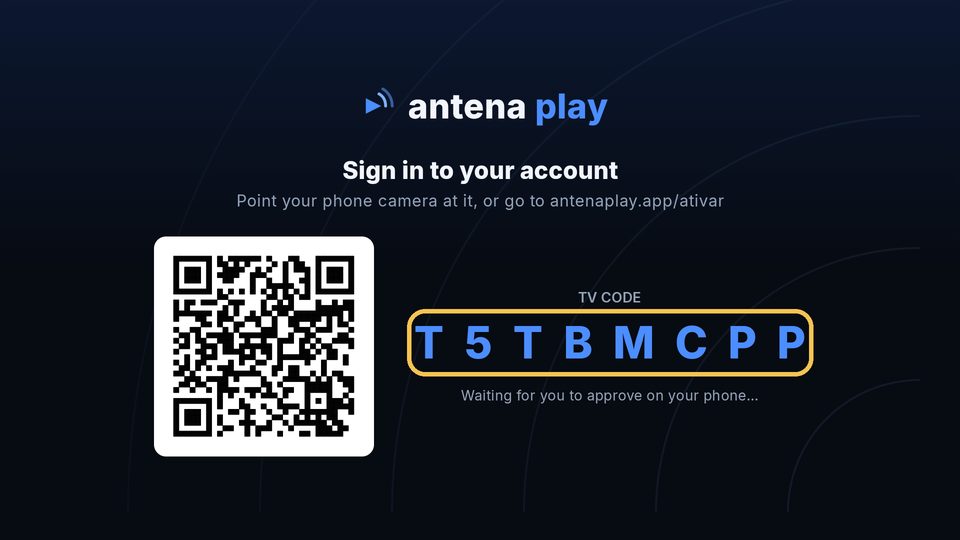
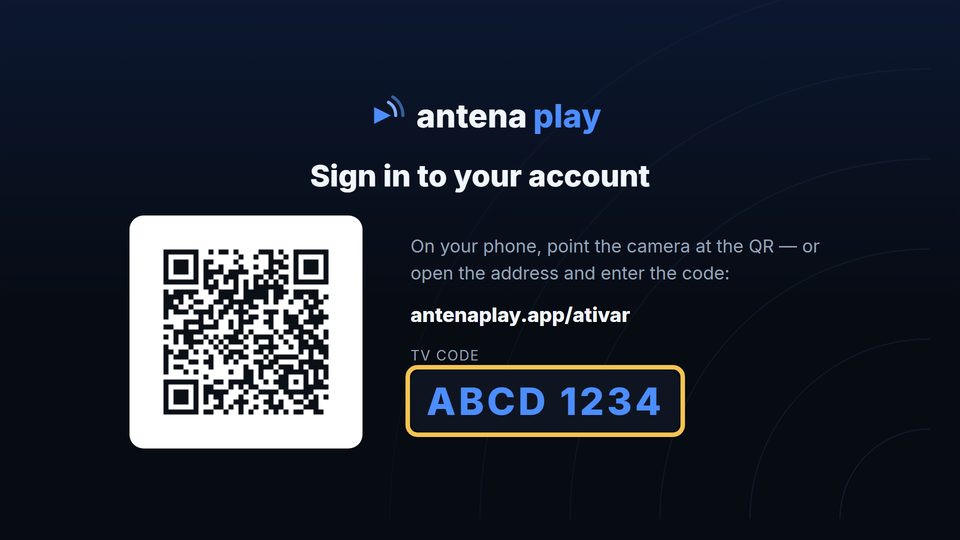
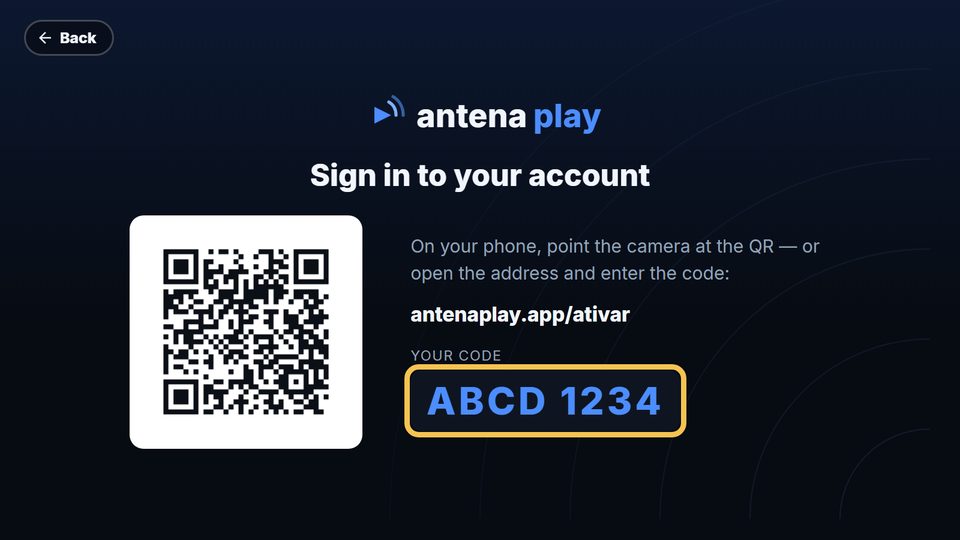
  3. The TV screen with the QR code and the TV code

    The TV shows a QR code and the TV code. Point your phone’s camera at the QR code, or open antenaplay.app/ativar and type the code.

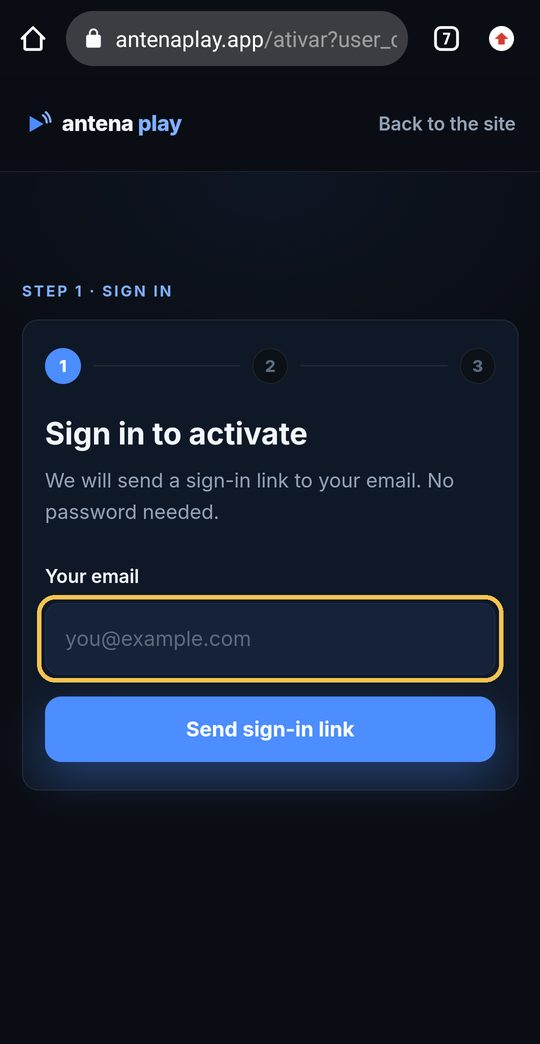
  4. The activation page open on a phone, with the email field highlighted

    On your phone, enter your email and tap Send sign-in link. Open the link that arrives in your email and tap Authorize: the TV signs in on its own.

Subscribe to Pro
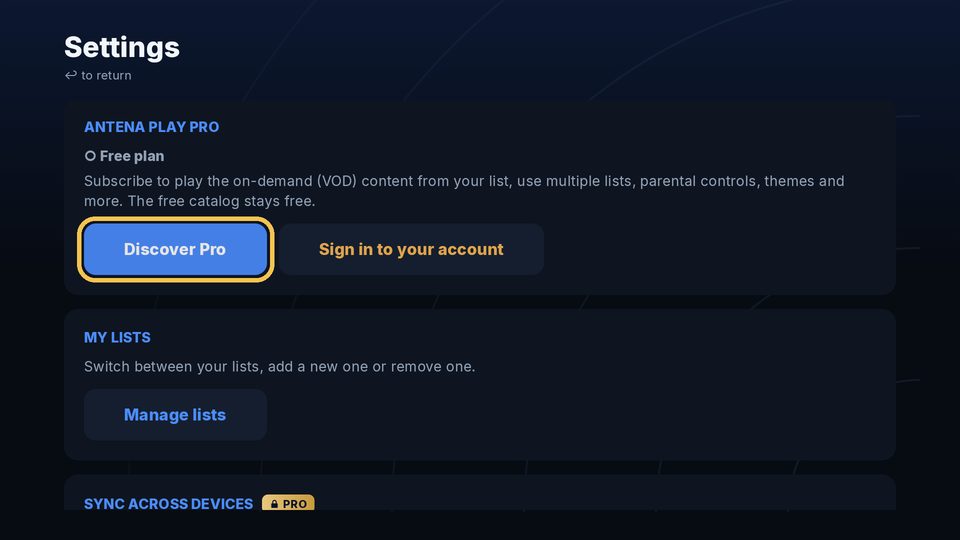
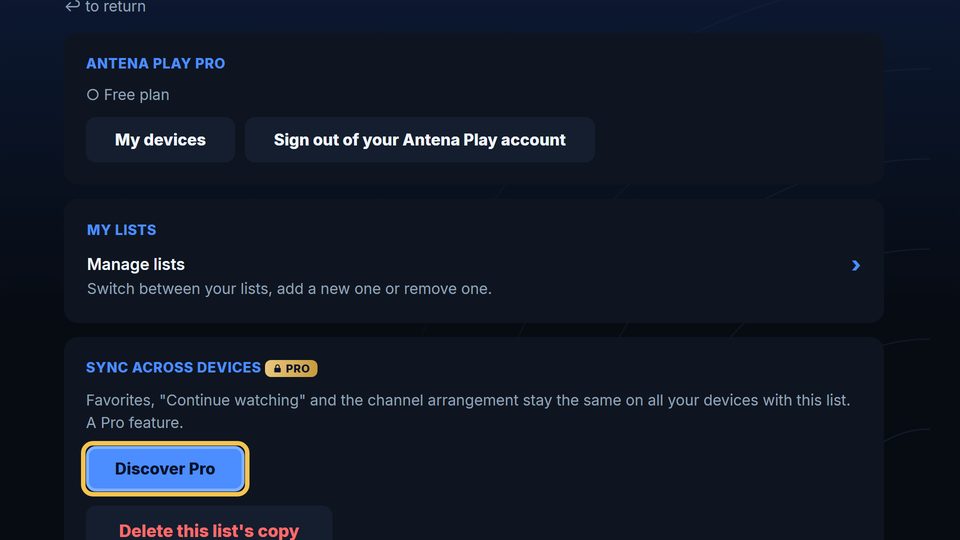
  1. The TV Settings, with Discover Pro highlighted

    In Settings, Antena Play Pro section, choose Discover Pro.

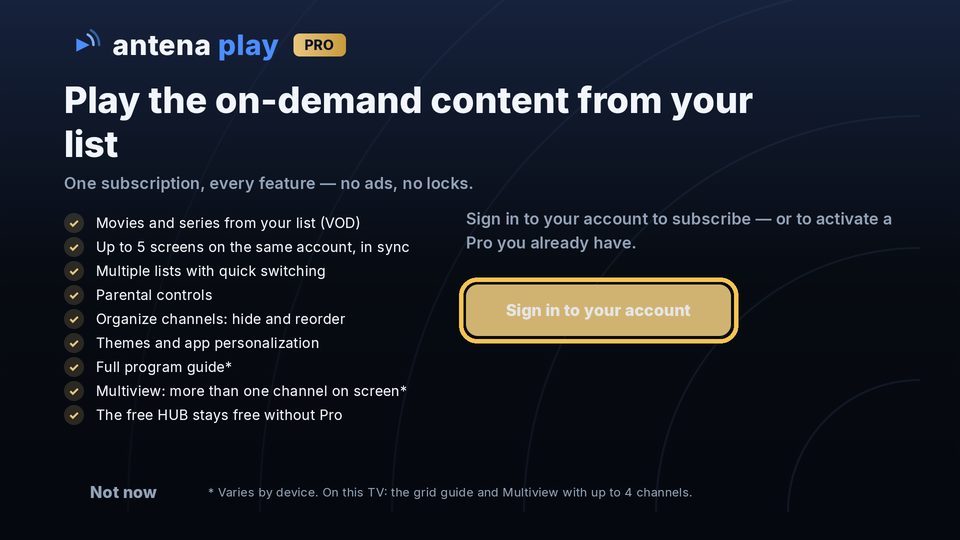
  2. The Pro screen on the TV, with Sign in to your account highlighted

    If no account is connected, the TV asks you to sign in first: choose Sign in to your account and follow the steps above.

  3. With your account connected, pick a plan and pay through Google Play. On boxes and sticks without Google Play, the screen shows a QR code (Subscribe on your phone) and you finish on the website. Already subscribed on the website? Don’t subscribe again: sign in with the same email, and Pro already works on the TV.

Full guide for this device →

Android phone and tablet

Version 2.0.2

Add your list

Tap I have an IPTV list, choose Xtream server or M3U list, fill in your list's details and tap Add list.

Sign in to your account

On the first screen, tap I already have an Antena Play account; later on, in Settings, Antena Play Pro section, tap Sign in to your account. The app shows your code: tap Open in browser, sign in with your email and confirm.

Subscribe to Pro

With your account connected, tap Subscribe to Pro in Settings and pay through Google Play.

Sign out

Sign out of your Antena Play account disconnects the account and frees the device's slot. Sign out of your lists, at the end of Settings, removes the lists saved on the phone and keeps the account connected. The app asks you to confirm.

Step by step, with screenshots

Add your list
Your first list
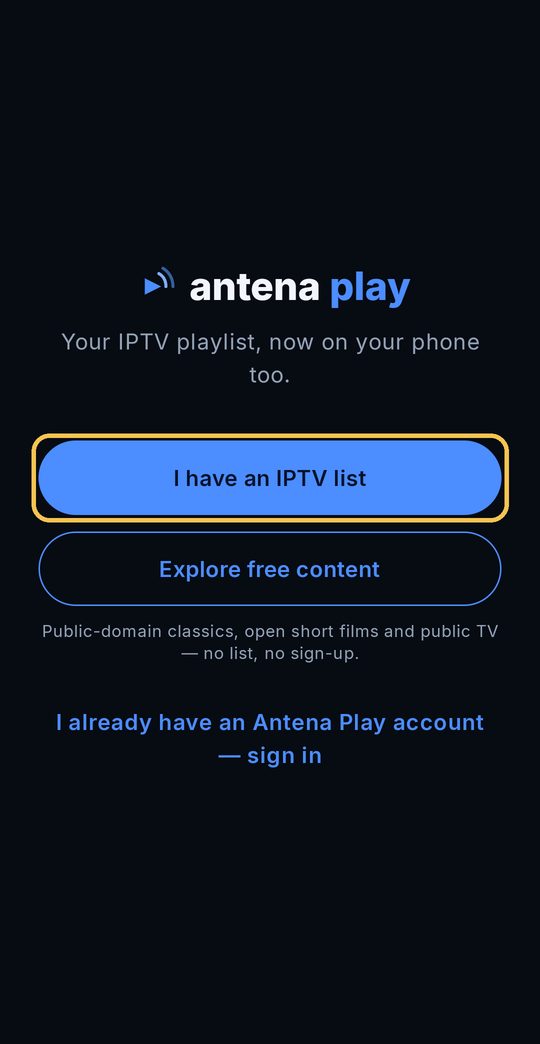
  1. The app’s first screen, with the I have an IPTV list button highlighted

    On the first screen, tap I have an IPTV list.

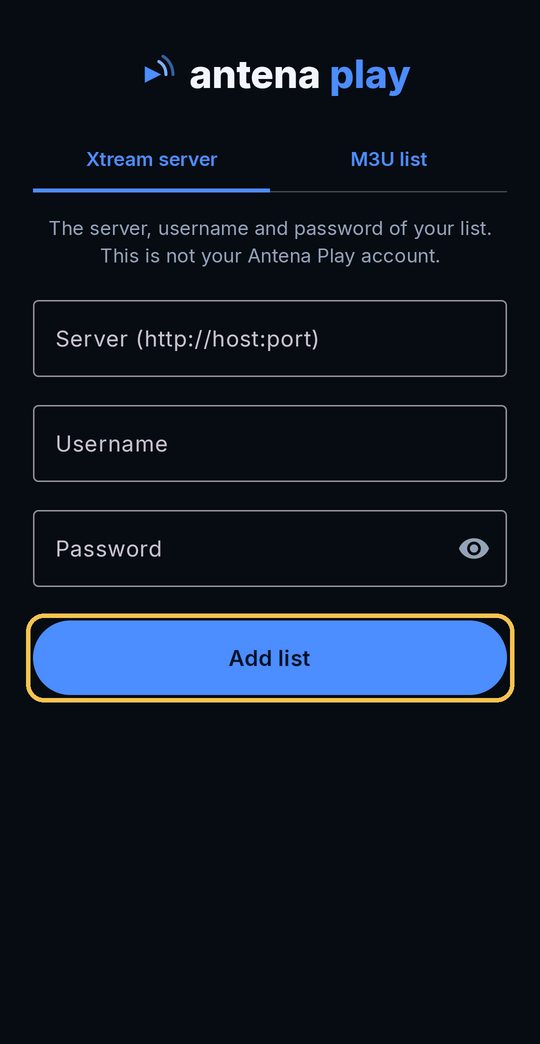
  2. The Xtream server form, with the server, username and password fields

    Under Xtream server, fill in the server, username and password your provider gave you and tap Add list.

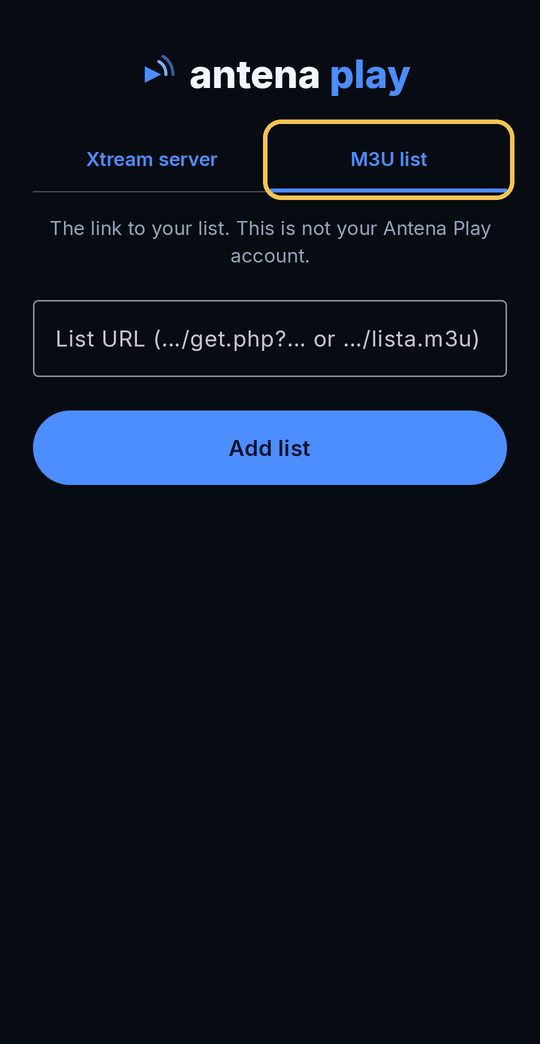
  3. The M3U list tab, with the list link field

    Got a link instead? On the M3U list tab, paste the whole link and tap Add list.

Another list, with the app in use
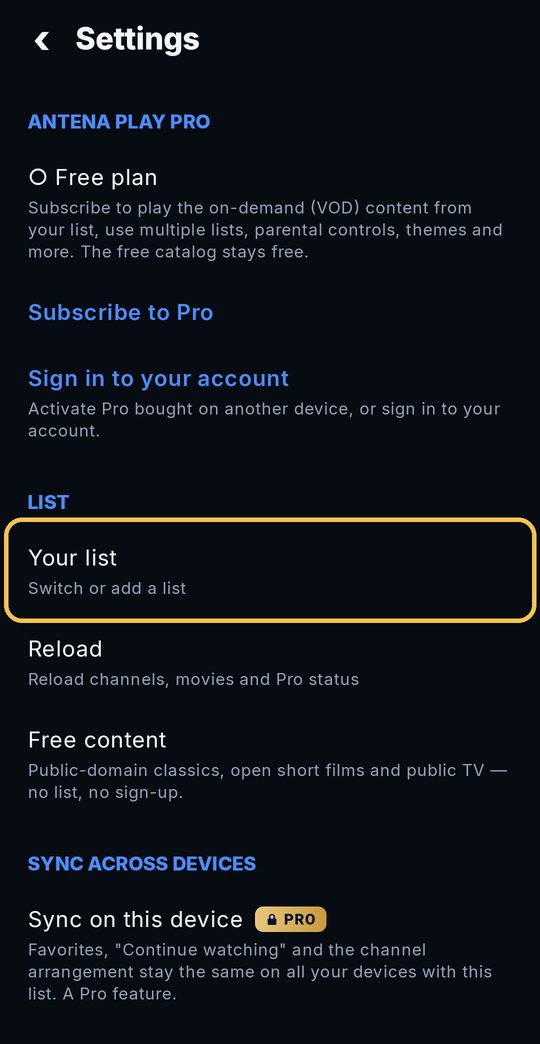
  1. Settings, with the Your list option highlighted

    In Settings, under List, tap Your list.

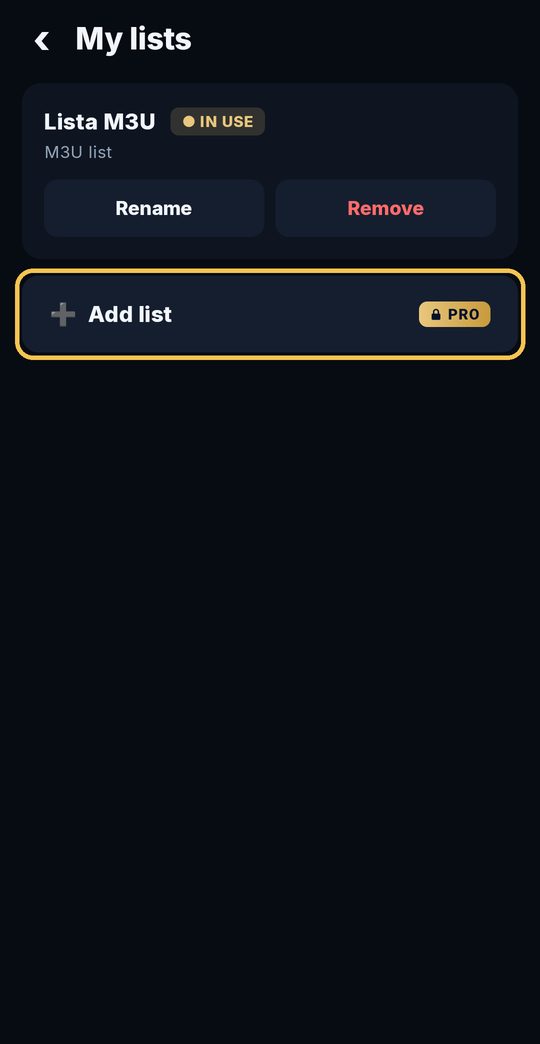
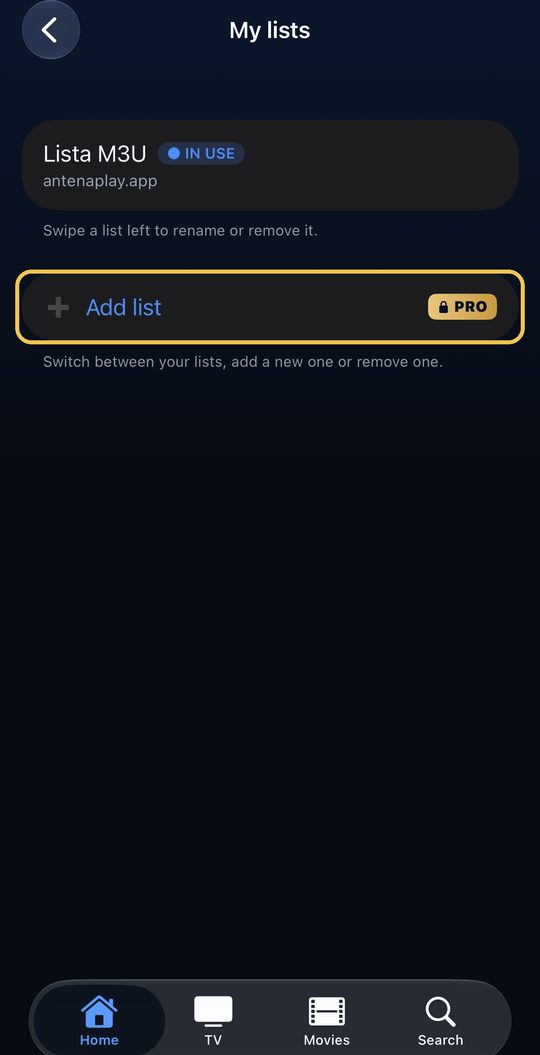
  2. My lists, with the Add list button highlighted

    Tap Add list and fill it in like the first one. More than one list is a Pro feature.

Went into the free content and can’t find where to add your list? The back arrow at the top takes you to the first screen. The details asked for are your list’s, from your provider, not your Antena Play account’s.

Sign in to your account
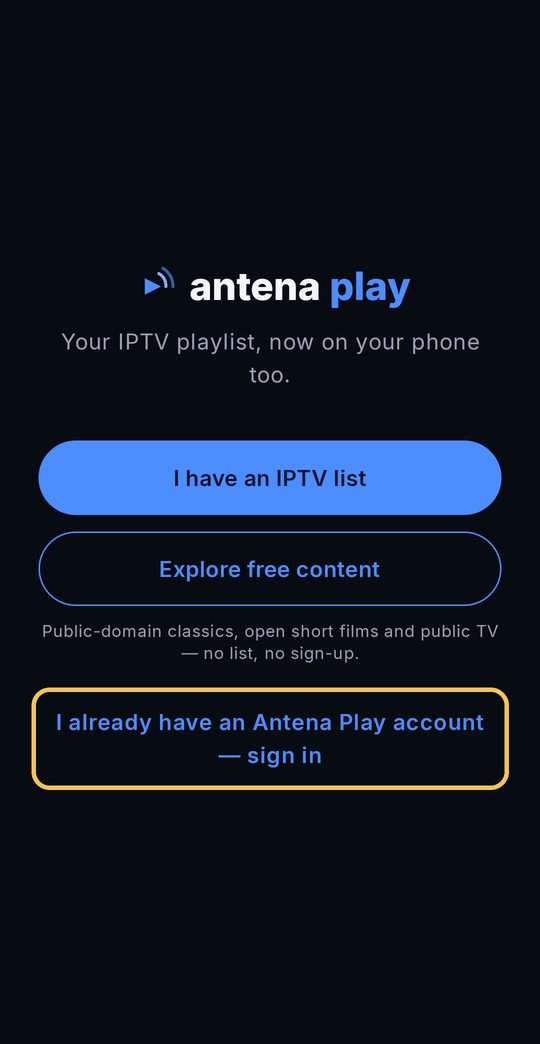
  1. The app’s first screen, with I already have an Antena Play account highlighted

    On the first screen, tap I already have an Antena Play account.

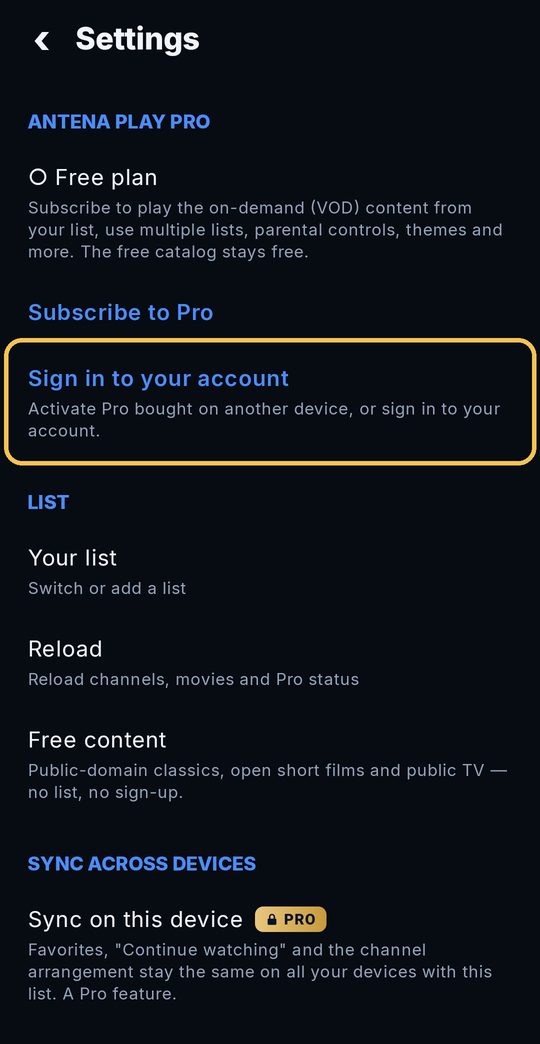
  2. Settings, with the Sign in to your account option highlighted

    With the app in use, go to Settings → Sign in to your account.

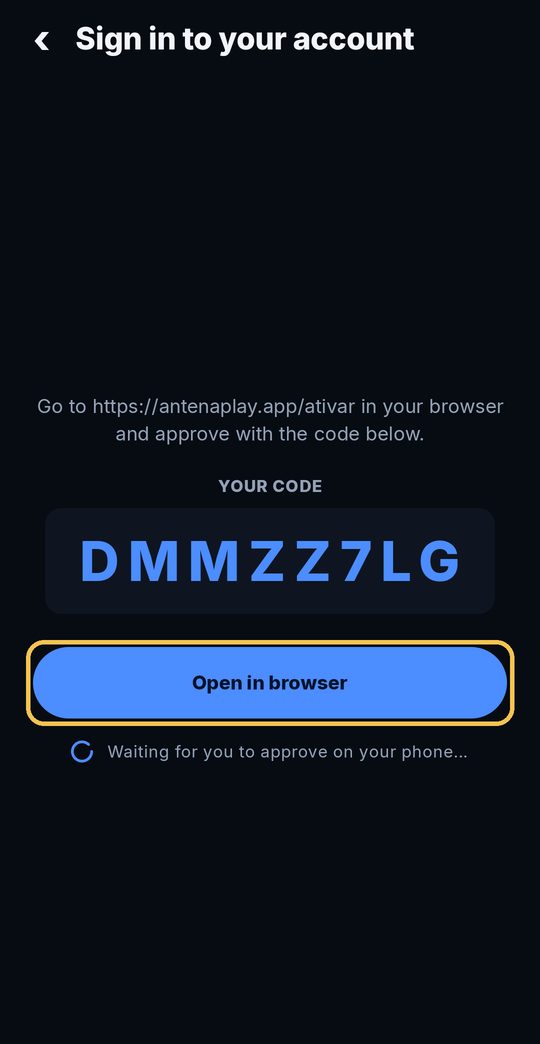
  3. The code screen, with the Open in browser button highlighted

    The app shows a code. Tap Open in browser.

  4. The activation page in the browser, with the email field highlighted

    Enter your email and tap Send sign-in link. Open the link that arrives in your email and tap Authorize: the phone signs in on its own.

Subscribe to Pro
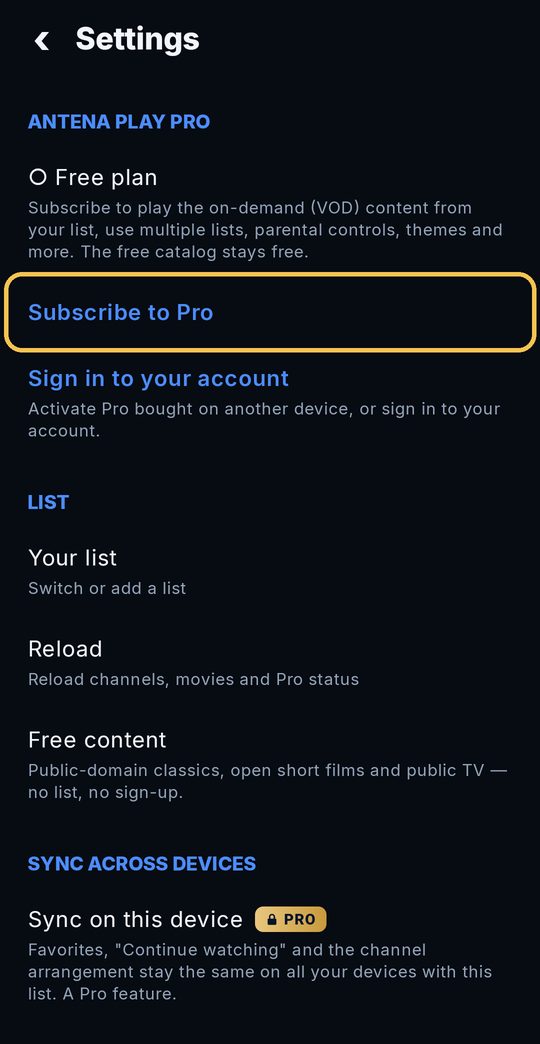
  1. Settings, with the Subscribe to Pro option highlighted

    In Settings, tap Subscribe to Pro.

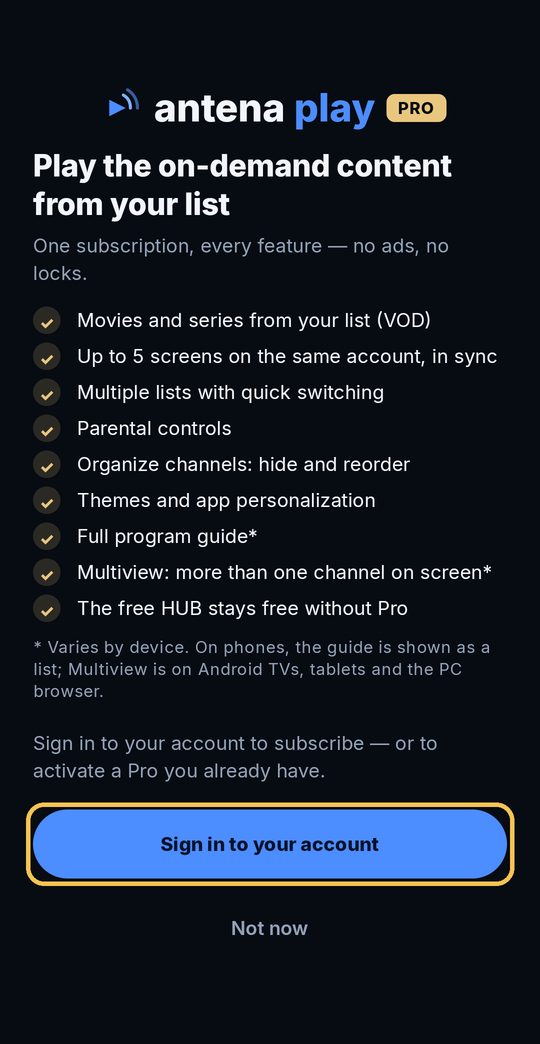
  2. The Pro screen, with the Sign in to your account button highlighted

    If no account is connected, the app asks you to sign in first: tap Sign in to your account and follow the steps above.

  3. With your account connected, choose a plan and pay through Google Play. Already subscribed on the website? Don’t subscribe again: sign in with the same email, and Pro already works on your phone.

Full guide for this device →

iPhone and iPad

Version 2.1.0

Add your list

Tap I have an IPTV list, enter your list's server, username and password (or the M3U list link) and tap Add list. If you type an email in the Username field, the app warns you.

Sign in to your account

On the first screen, tap I already have an Antena Play account; later on, go to Settings, Sign in to your account. Approve the code at antenaplay.app/ativar, or tap I have a code and type the code shown in your account, at antenaplay.app/conta, Screens tab, Connect a TV button.

Subscribe to Pro

With your account connected, tap Subscribe to Pro, in Settings, and subscribe through the App Store. New iPhone? Tap Restore purchases.

Sign out

Sign out of your lists removes the lists from the iPhone, and your account stays connected. Sign out of your Antena Play account disconnects the account.

Step by step, with screenshots

Add your list
Your first list
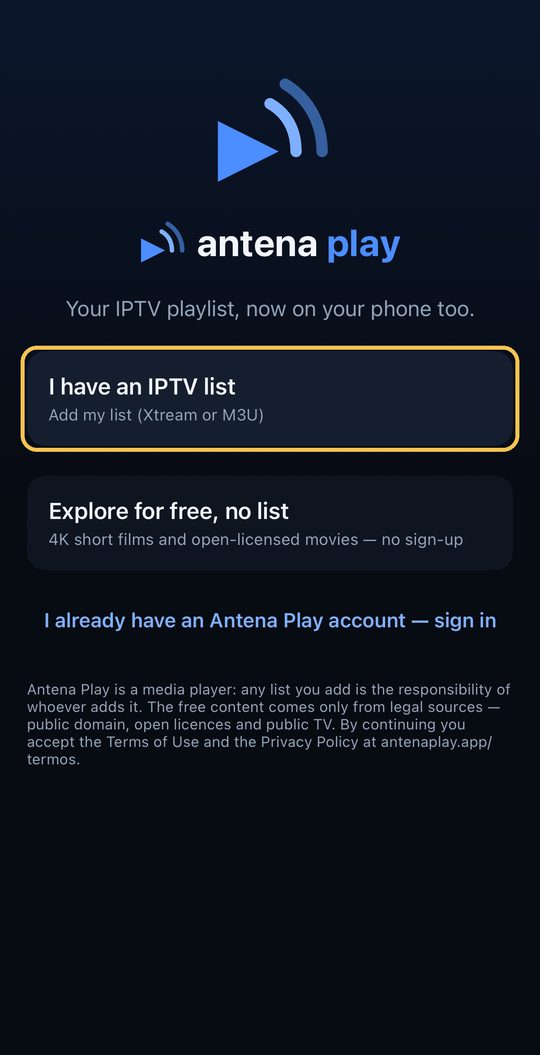
  1. The app first screen, with the I have an IPTV list button highlighted

    On the first screen, tap I have an IPTV list.

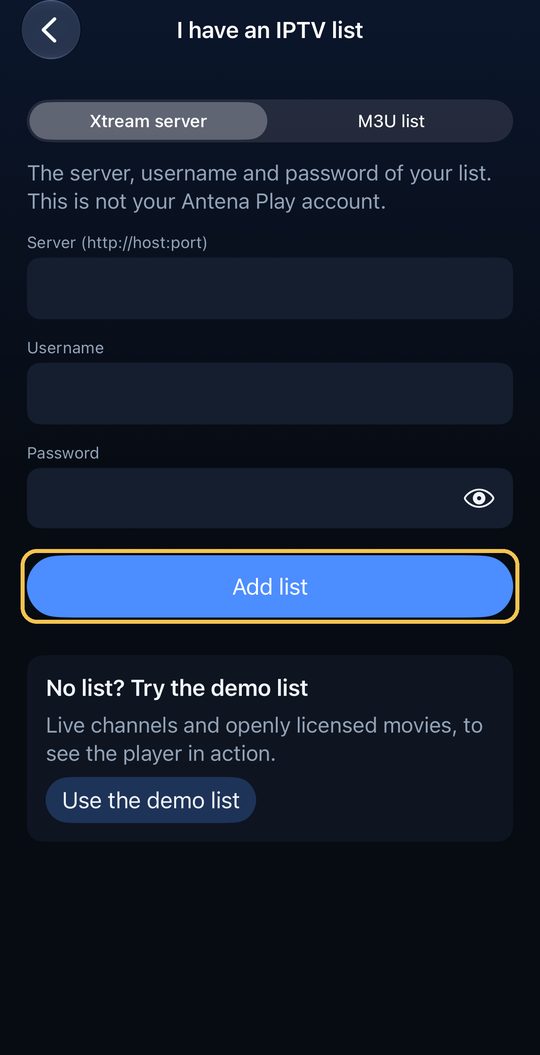
  2. The Xtream server form, with the Add list button highlighted

    Under Xtream server, fill in your list’s server, username and password and tap Add list. If you type an email in the Username field, the app warns you.

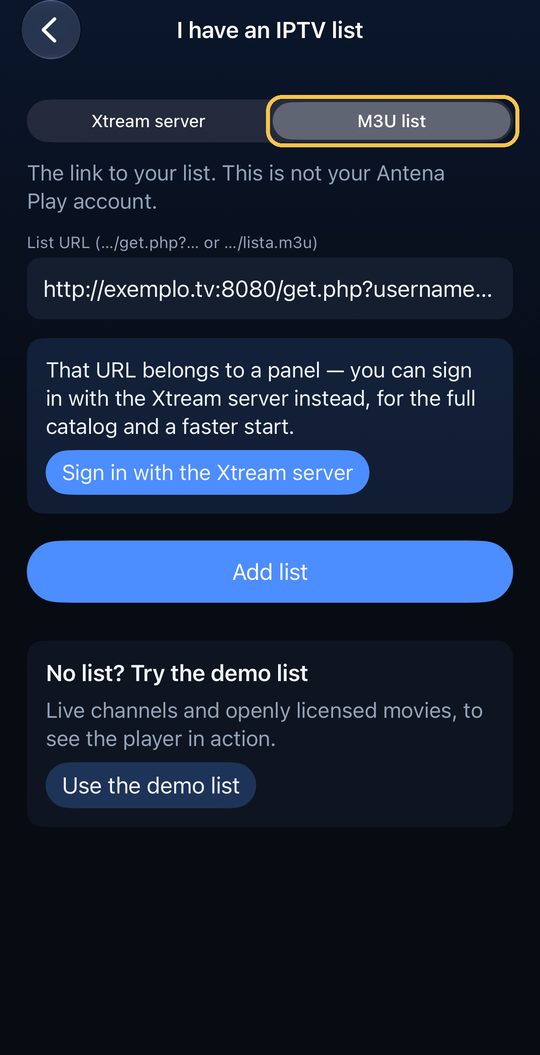
  3. The M3U list tab, with the list link field highlighted

    Got a link? On the M3U list tab, paste the whole link and tap Add list. If the link is a panel’s, the app offers to sign in with the Xtream server instead.

Another list, with the app in use
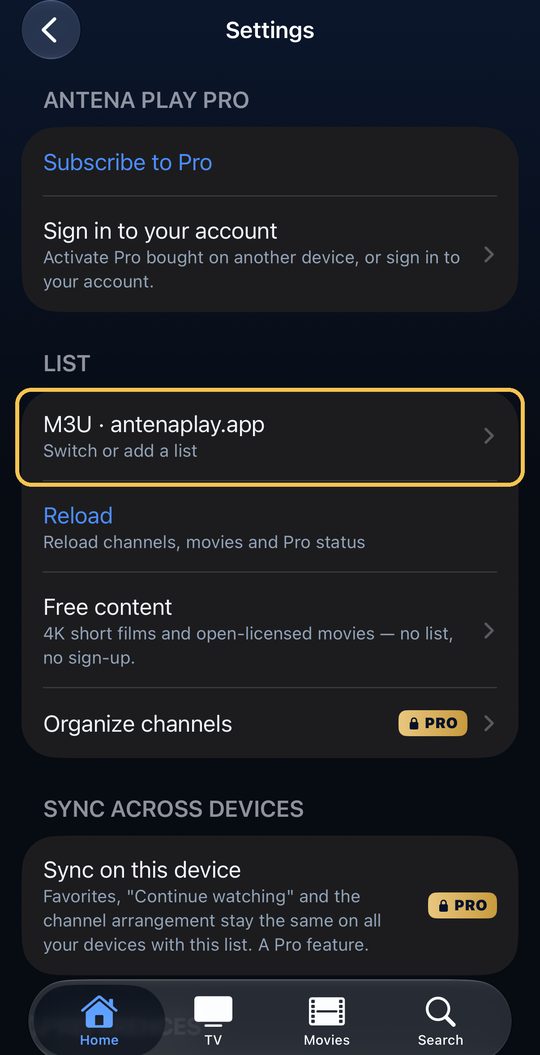
  1. Settings, with the list in use highlighted

    With the gear at the top of Home, in Settings, under List, tap your list (Switch or add a list).

  2. My lists, with the Add list button highlighted

    In My lists, tap Add list and fill it in like the first one. More than one list is a Pro feature.

Went into the free content and can’t find where to add your list? With the gear, in Settings, tap Your list. The details asked for are your list’s, not your Antena Play account’s.

Sign in to your account
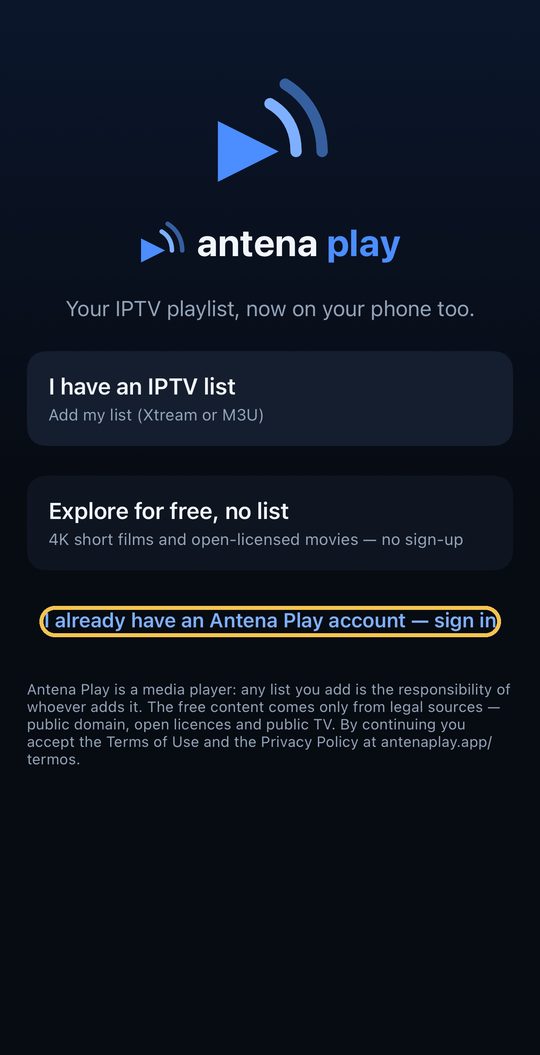
  1. The app first screen, with I already have an Antena Play account highlighted

    On the first screen, tap I already have an Antena Play account.

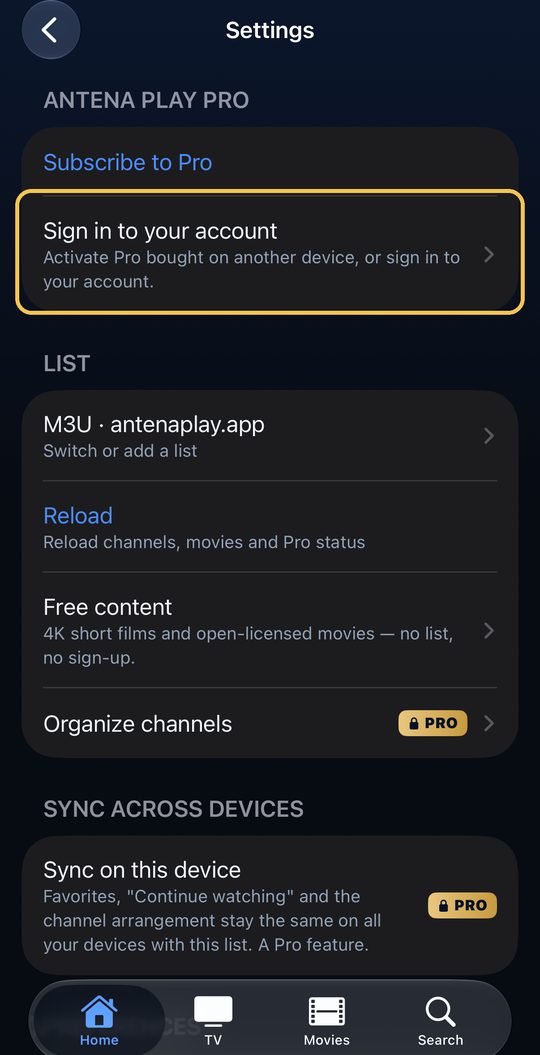
  2. Settings, with the Sign in to your account option highlighted

    With the app in use, go to Settings → Sign in to your account.

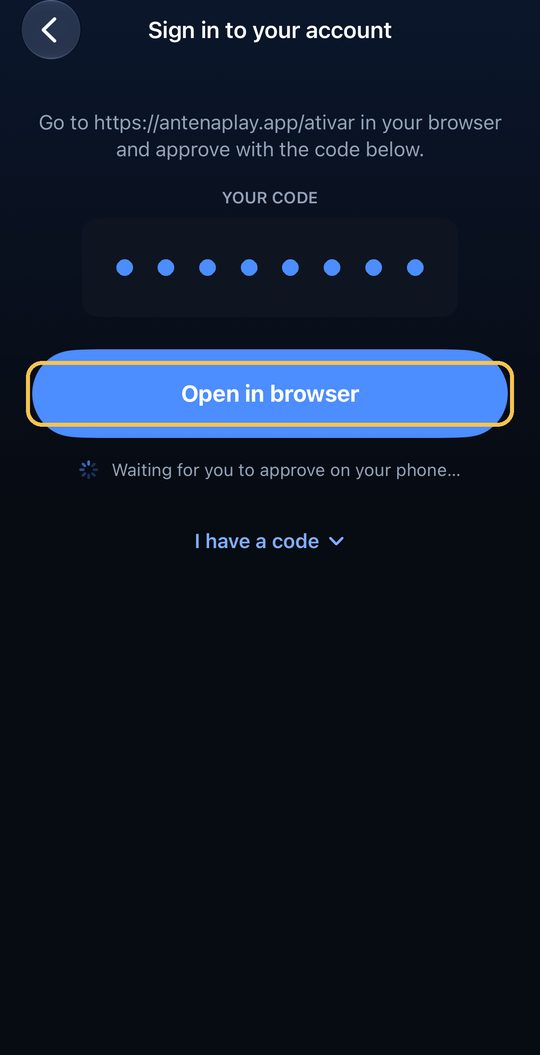
  3. The code screen, with the code replaced by dots and the Open in browser button highlighted

    The app shows a code (the dots in the picture). Tap Open in browser: the code goes along. Already signed in on the website? Tap I have a code and type the code from antenaplay.app/conta, Screens tab, Connect a TV.

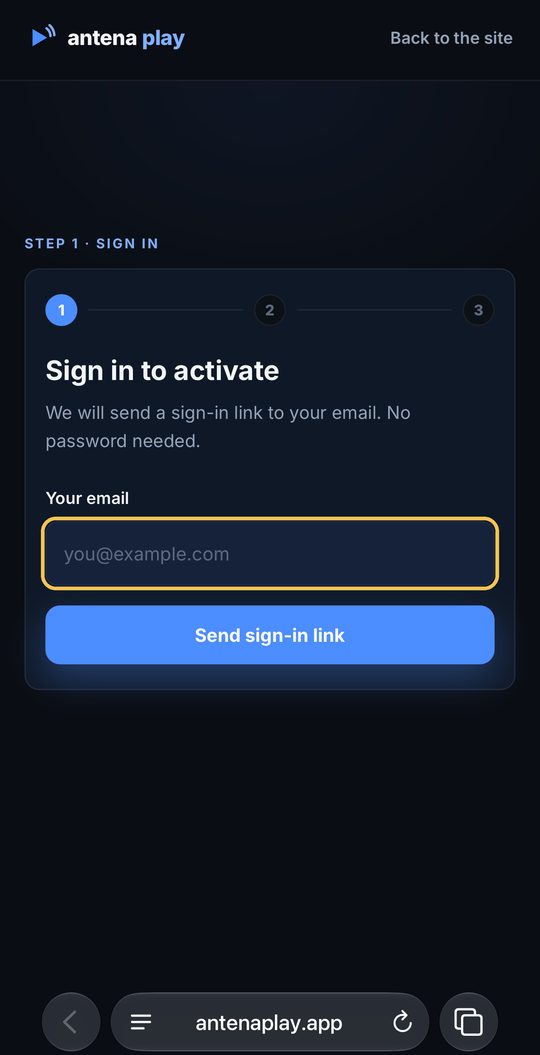
  4. The activation page in the browser, with the email field highlighted

    In the browser, enter your email and tap Send sign-in link. Open the link that arrives in your email. No account yet? It is created by that link.

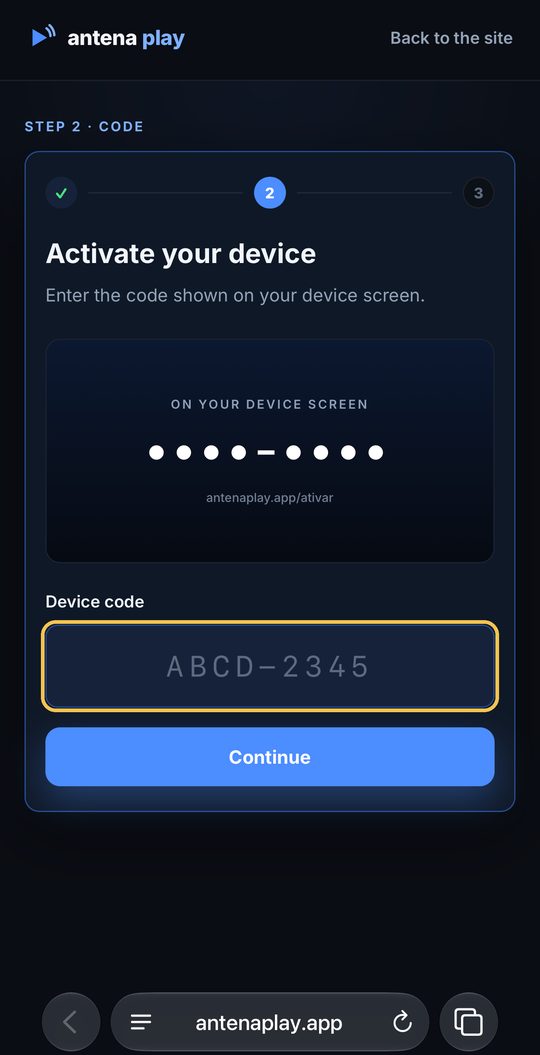
  5. The page asking for the device code, with the code field highlighted

    Opened the website by its address, and not from the app’s button? After the email, type the code the app shows and tap Continue.

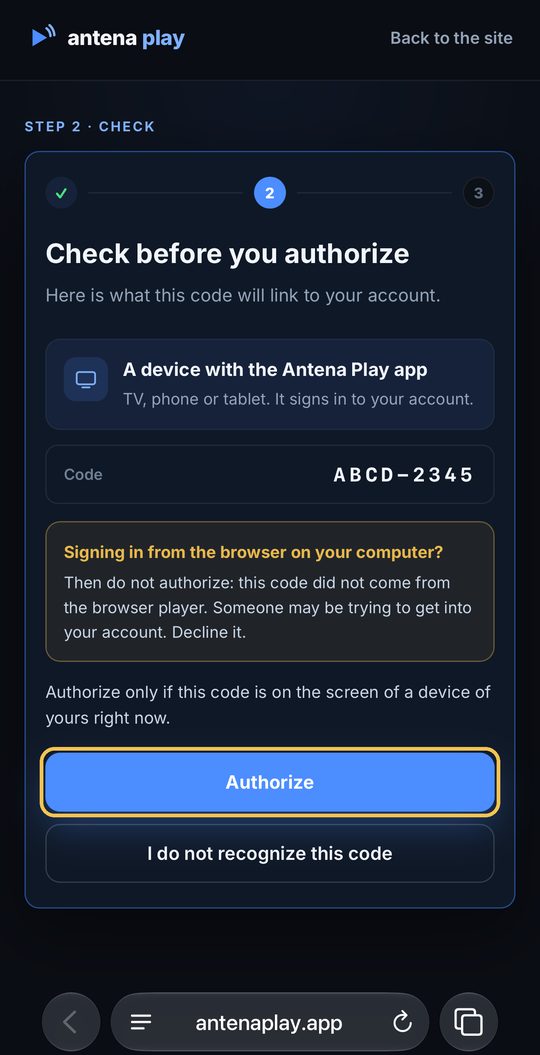
  6. The check before authorizing, with the Authorize button highlighted

    Check what the code will link to your account and tap Authorize: the iPhone signs in on its own. Don’t recognize the code? Tap I do not recognize this code.

Subscribe to Pro
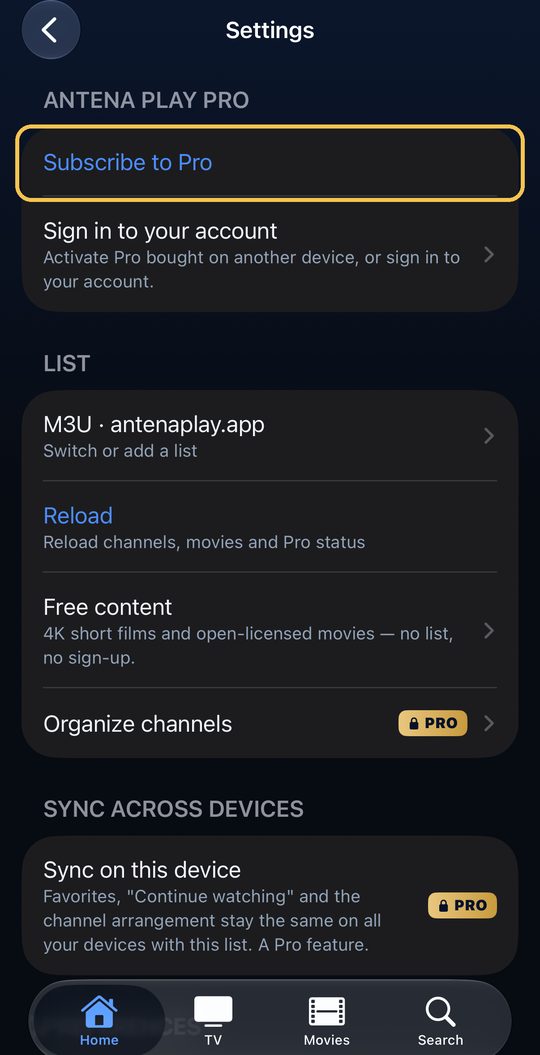
  1. Settings, with the Subscribe to Pro option highlighted

    In Settings, tap Subscribe to Pro.

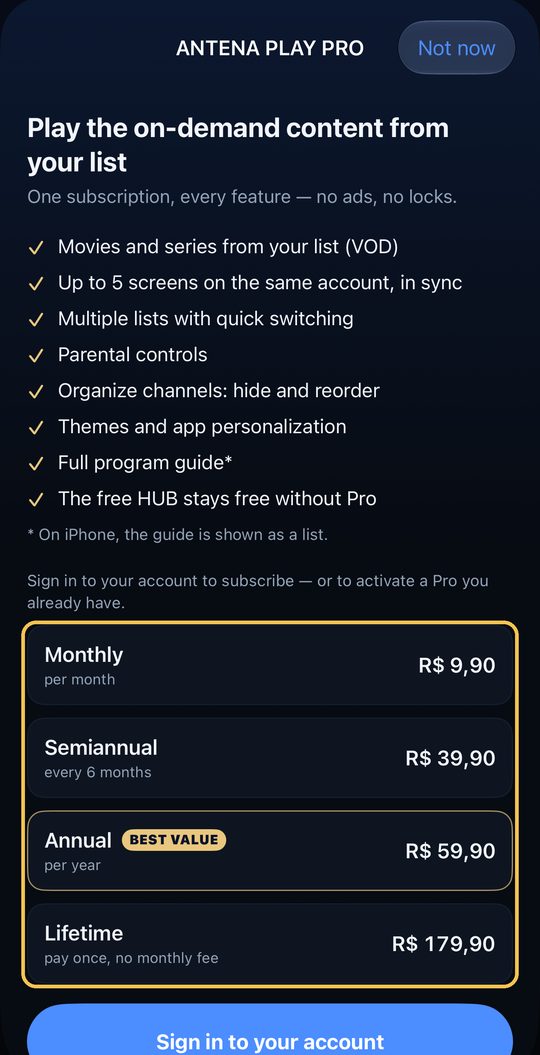
  2. The Pro screen, with the plans and prices highlighted

    The Pro screen shows the plans, with the App Store price. Without an account connected, tap Sign in to your account, just below, and follow the steps above. The prices in the picture are the Brazilian App Store’s; in another country, the App Store shows the price there.

  3. With your account connected, choose a plan and subscribe through the App Store. Already subscribed on the website or on Android? Don’t subscribe again: sign in with the same email, and Pro already works on your iPhone. New iPhone? Tap Restore purchases.

On iPad
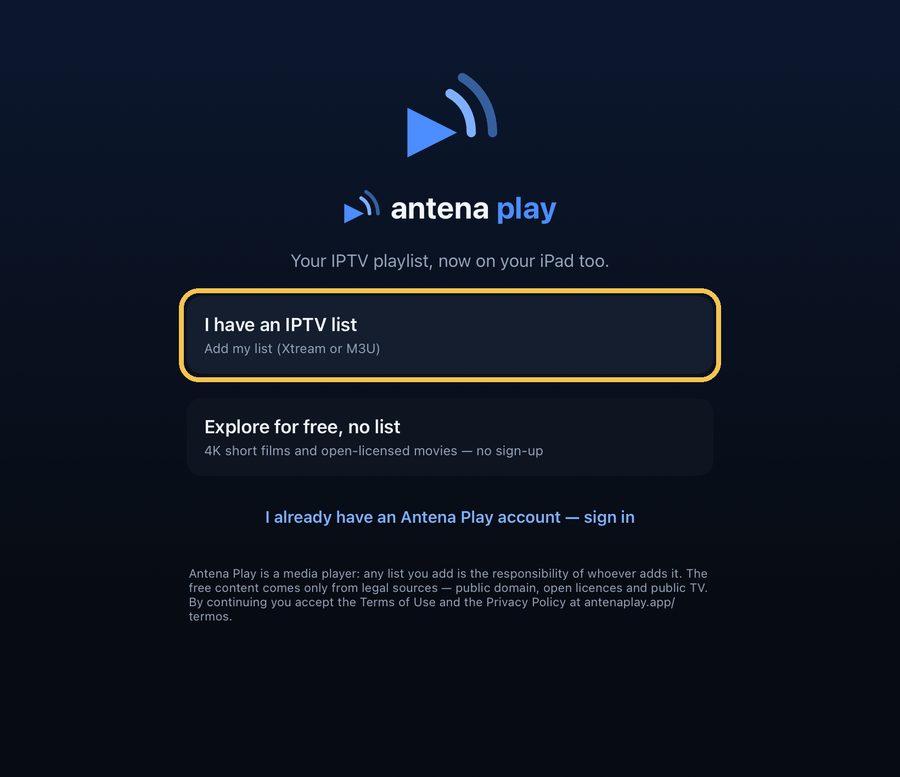
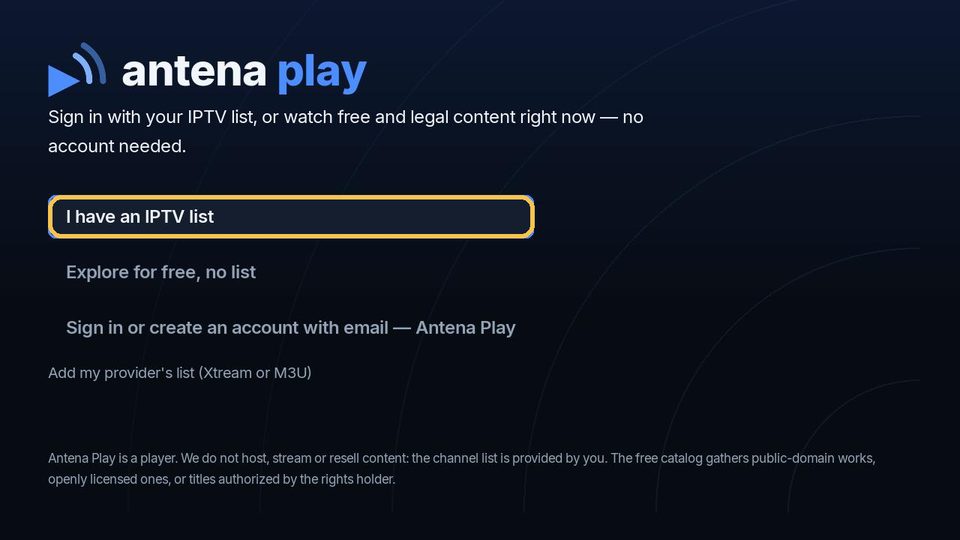
  1. The app first screen on iPad, with I have an IPTV list highlighted

    The first screen is the same as on iPhone, in a column in the middle: I have an IPTV list or I already have an Antena Play account.

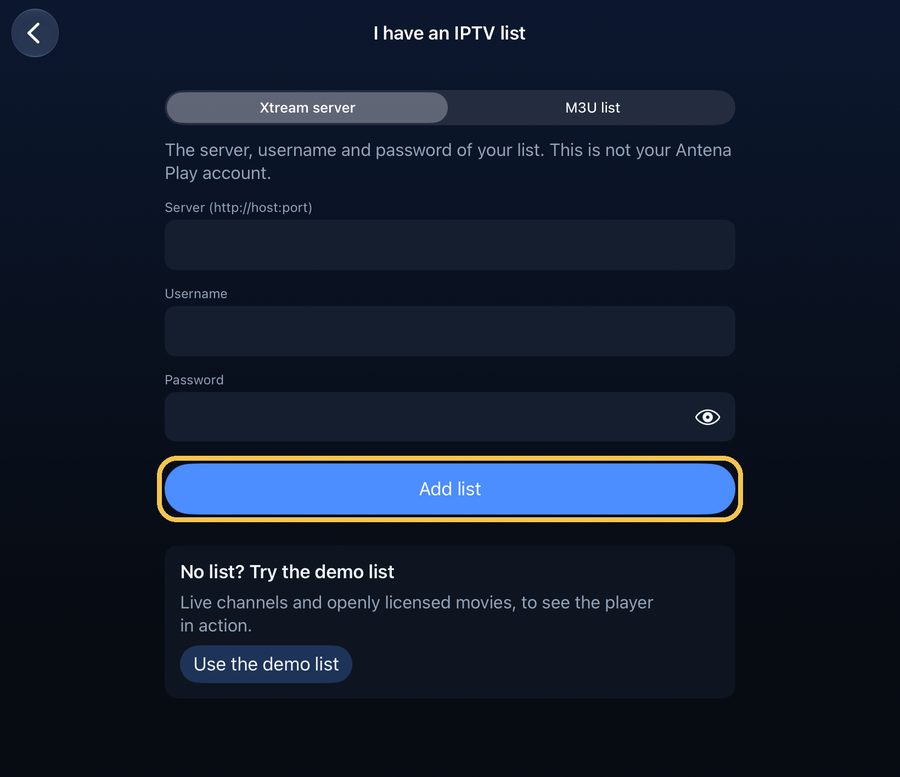
  2. The Xtream server form on iPad, with the Add list button highlighted

    So is the list form: fill it in and tap Add list.

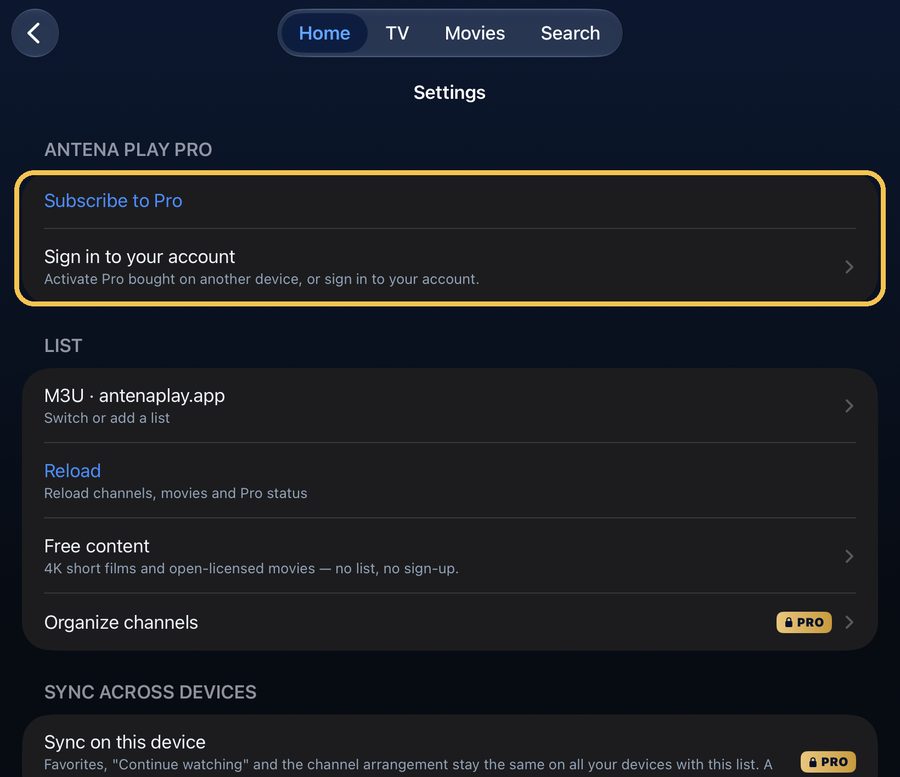
  3. Settings on iPad, with Subscribe to Pro and Sign in to your account highlighted

    In Settings, the tabs sit at the top, and Subscribe to Pro and Sign in to your account are still first.

On iPad, Pro also includes Multiview, on the TV tab, with up to two channels at once.

Full guide for this device →

Roku

Version 2.0.3

Add your list

Choose I have an IPTV list. Under Sign in with, choose Xtream server or M3U list, fill in your list's details and confirm with Add list.

Sign in to your account

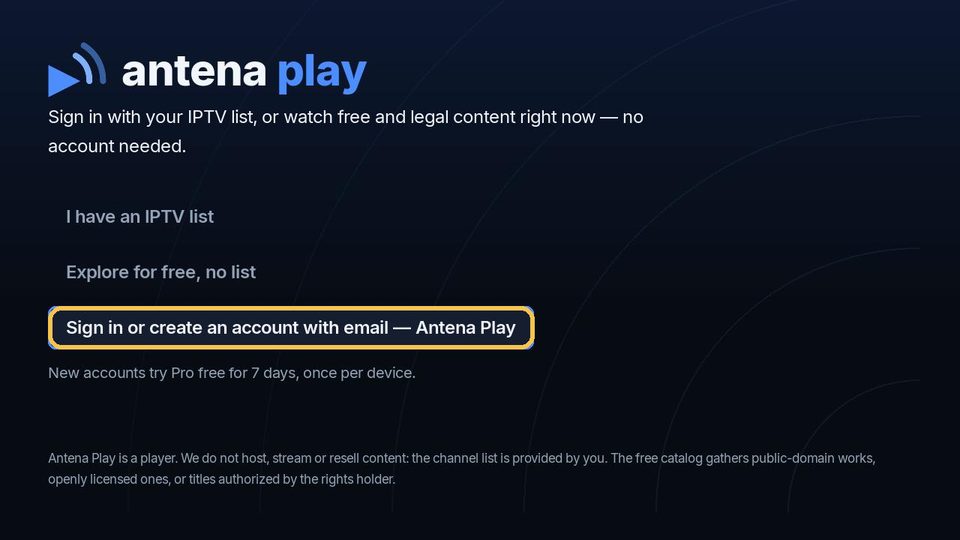
On the first screen, choose Sign in or create an account with email; later on, Settings, Sign in to your account. Type your email and press Back: a 6-digit code arrives in your email, and you type it on the Roku. No account yet? It is created right there. The 8-character code from antenaplay.app/conta (Screens tab, Connect a TV) also works on that screen.

Subscribe to Pro

You subscribe on the website, at antenaplay.app/conta. Once the account is connected, the Roku unlocks Pro on its own.

Sign out

Sign out of your Antena Play account disconnects the account from the Roku. Sign out of your lists removes the lists saved on the Roku, with their favorites and progress, and keeps the account connected.

Step by step, with screenshots

Add your list
Your first list
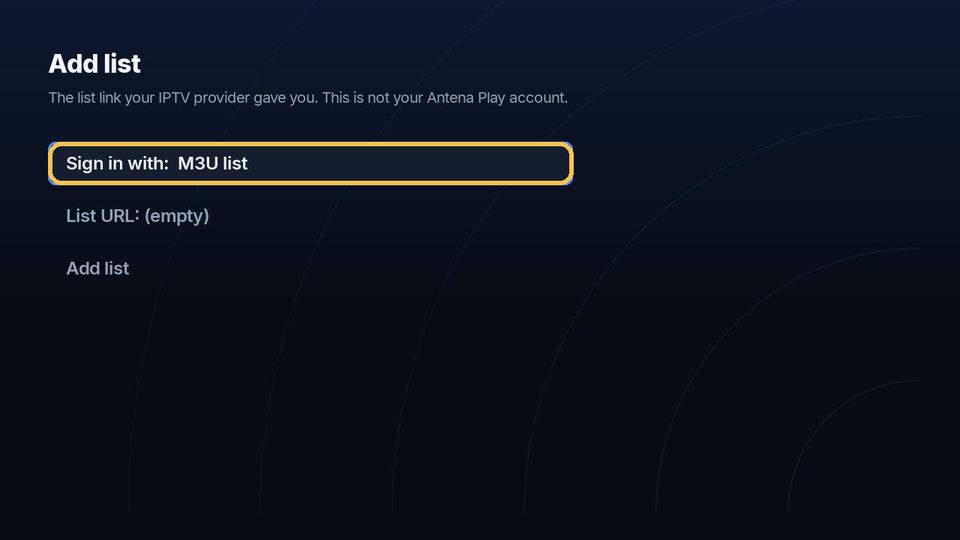
  1. The app’s first screen on Roku, with I have an IPTV list highlighted

    On the first screen, choose I have an IPTV list and press OK.

  2. The list form on Roku, with Add list highlighted

    Under Sign in with, keep Xtream server, fill in the server, username and password your provider gave you and choose Add list.

  3. The M3U list option on Roku, highlighted

    Got a link instead? Press OK on Sign in with to switch to M3U list, type the whole link in List URL and choose Add list. On the on-screen keyboard, the slash (/) is in the symbols (!?#$%&).

Another list, with the app in use
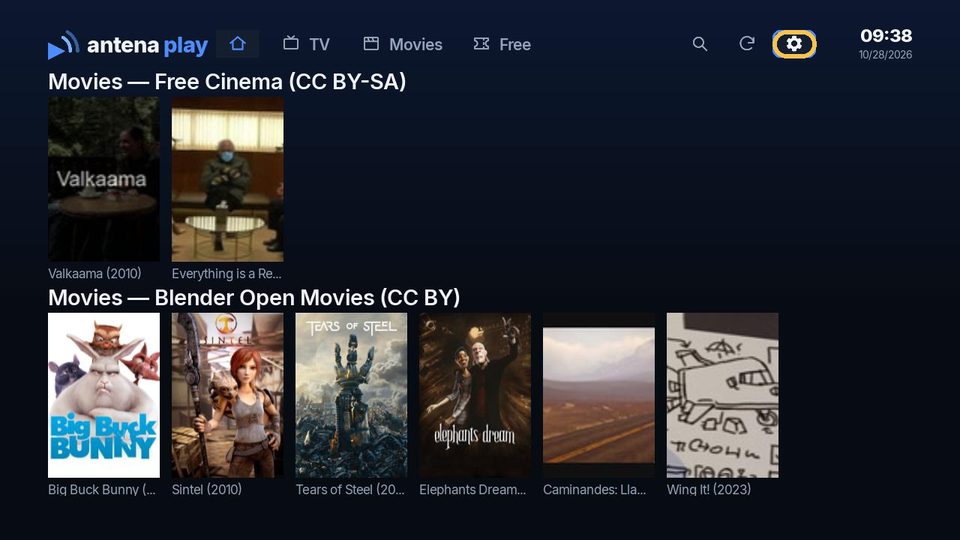
  1. The Roku home screen, with the Settings gear highlighted

    At the top of the screen, go to the gear and press OK.

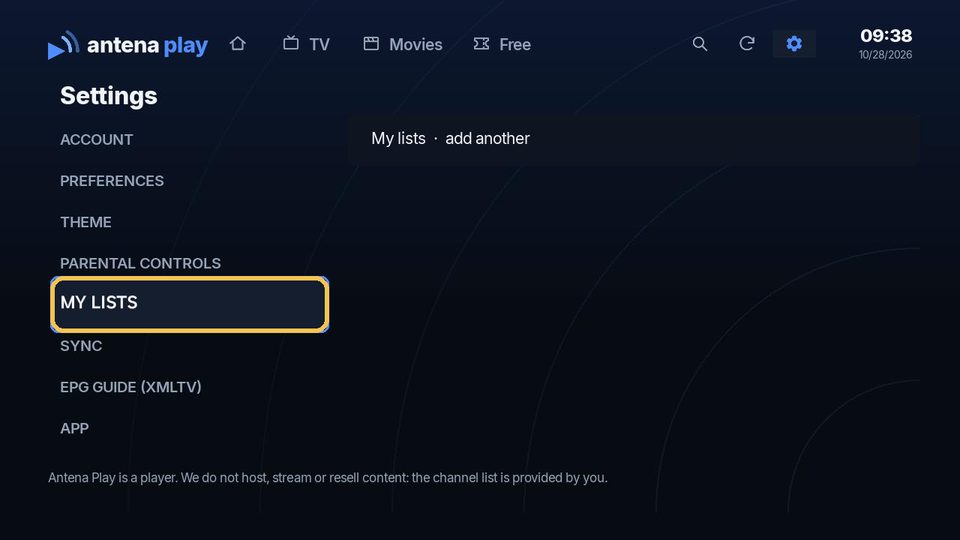
  2. Roku Settings, with My lists highlighted

    In Settings, choose My lists.

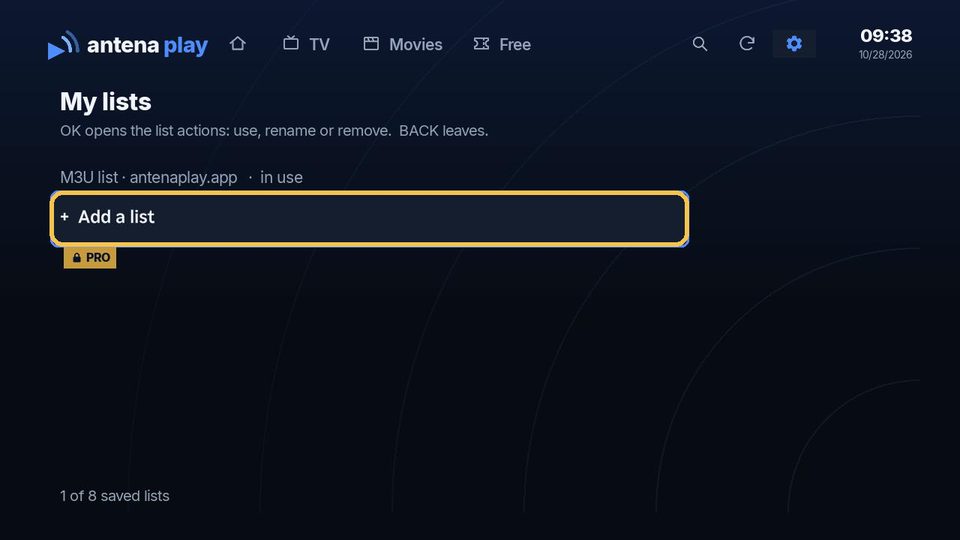
  3. My lists on Roku, with Add a list highlighted

    Choose Add a list and fill it in like the first one. More than one list is a Pro feature.

Went into the free content? The I have an IPTV list button at the top opens the same form. The details asked for are your list’s, from your provider, not your Antena Play account’s.

Sign in to your account
  1. The Roku first screen, with Sign in or create an account with email highlighted

    On the first screen, choose Sign in or create an account with email.

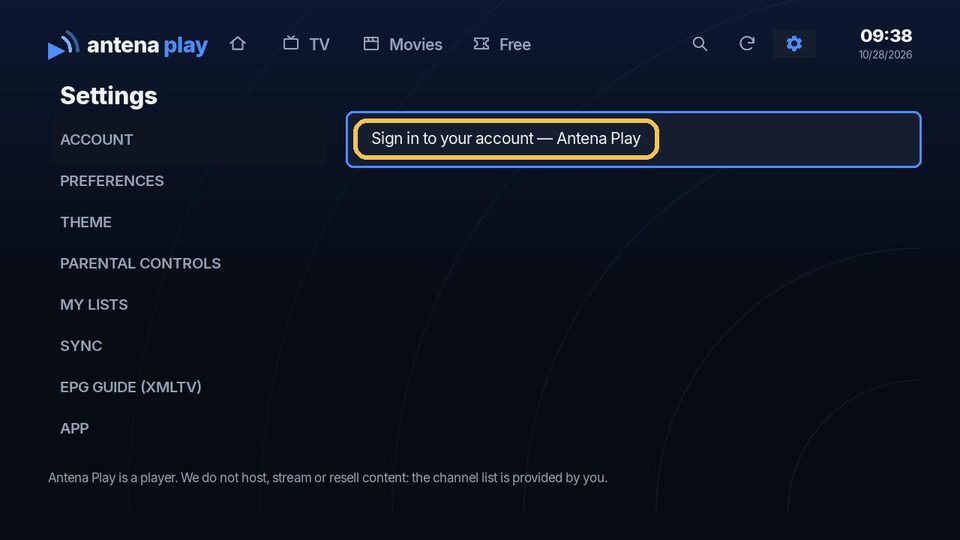
  2. Roku Settings, with Sign in to your account highlighted

    With the app in use, under the gear, in Settings, Account, choose Sign in to your account.

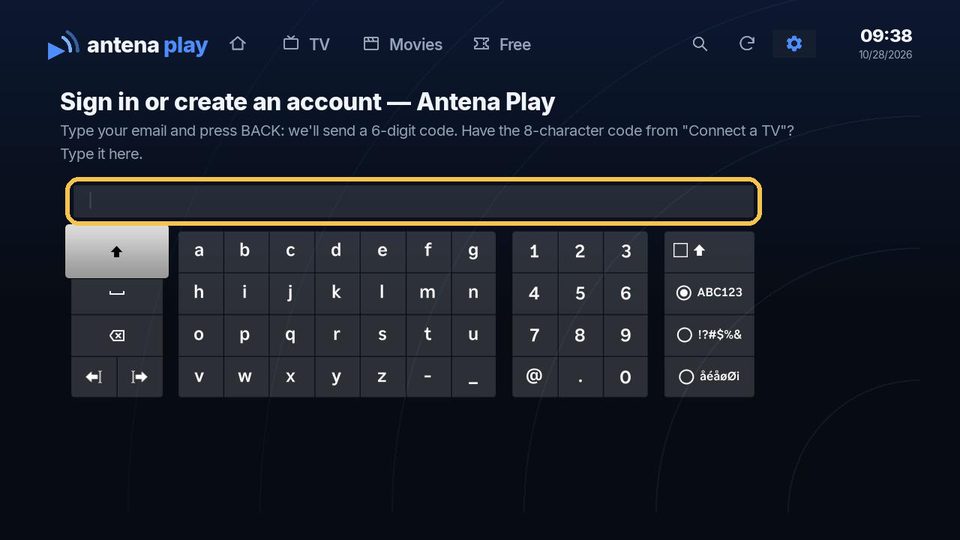
  3. The account screen on Roku, with the email field highlighted

    Type your email on the on-screen keyboard and press Back: a 6-digit code arrives in your email.

  4. Type the code from the email on the Roku, and the account signs in. No account yet? It is created right there. The 8-character code from antenaplay.app/conta (Screens tab, Connect a TV) also works on that screen.

Subscribe to Pro
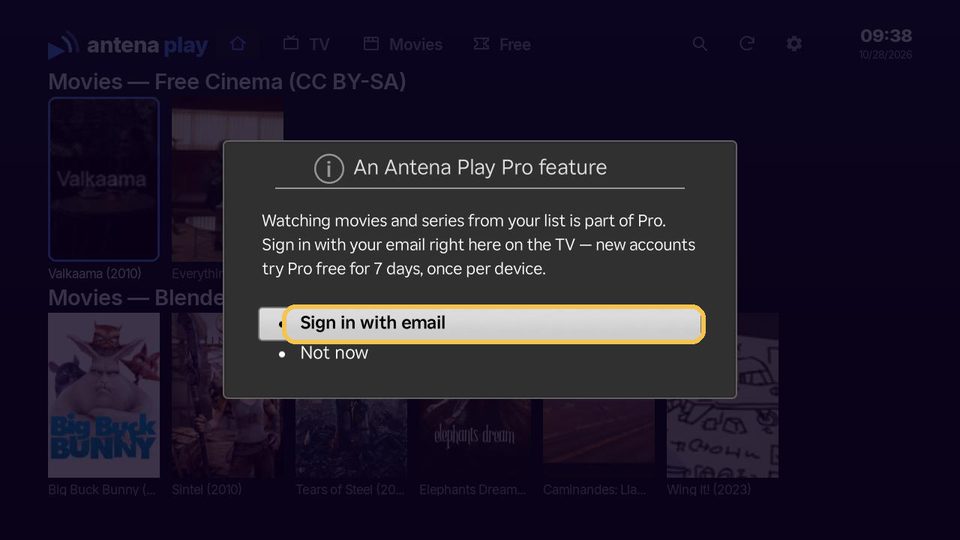
  1. The Pro notice on Roku, with Sign in with email highlighted

    Opened a movie or series from your list without Pro? The Roku shows the Pro notice: choose Sign in with email and follow the steps above.

  2. You subscribe on the website, at antenaplay.app/conta, with the same email. With your account connected, the Roku unlocks Pro on its own.

Full guide for this device →

LG (webOS)

Version 2.0

Version 2.0 is under review at LG. The steps and screenshots below are already version 2.0’s. If your TV is still on 1.1.0, two names differ: the button that confirms the list is Sign in, and the Sign out button at the end of Settings removes the lists, not the account.

Add your list

Choose I have an IPTV list. Under Xtream server, fill in server, username and password; under M3U list, type the link. Confirm with Add list.

Sign in to your account

On the first screen, choose I already have an Antena Play account; later on, open Settings and, in the Antena Play Pro section, choose Sign in to your account. Point your phone’s camera at the QR code or open antenaplay.app/ativar, sign in with your email and confirm the TV code.

Subscribe to Pro

You subscribe on the website: with your account connected, Discover Pro shows a QR code (Subscribe on your phone), and you finish on your phone.

Sign out

Sign out of your Antena Play account disconnects the account and frees the TV’s slot. Sign out of your lists, at the end of Settings, removes the lists saved on the TV and keeps the account connected.

Step by step, with screenshots

Add your list
Your first list
  1. The app’s first screen on the LG TV, with I have an IPTV list highlighted

    On the first screen, choose I have an IPTV list and press OK.

  2. The Xtream server form on the LG TV, with the on-screen keyboard

    Under Xtream server, fill in the server, username and password with the on-screen keyboard and choose Add list.

  3. The M3U list option on the LG TV

    Got a link instead? Go up to M3U list, press OK, type the whole link and choose Add list.

Another list, with the app in use
  1. The home screen on the LG TV, with the Settings gear highlighted

    At the top of the screen, go to the gear and press OK.

  2. Settings on the LG TV, with Manage lists highlighted

    Under My lists, choose Manage lists.

  3. My lists on the LG TV, with Add list highlighted

    Choose Add list and fill it in like the first one. More than one list is a Pro feature.

Went into the free content? The I have an IPTV list button at the top opens the same form. The details asked for are your list’s, from your provider, not your Antena Play account’s.

Sign in to your account
  1. The first screen on the LG TV, with I already have an Antena Play account highlighted

    On the first screen, choose I already have an Antena Play account.

  2. Settings on the LG TV, with Sign in to your account highlighted

    With the app in use, under the gear, in Settings, choose Sign in to your account.

  3. The LG TV screen with the QR code and the TV code

    The TV shows a QR code and the TV code. Point your phone’s camera at the QR code, or open antenaplay.app/ativar and type the code.

  4. The activation page open on a phone, with the email field highlighted

    On your phone, enter your email and tap Send sign-in link. Open the link that arrives in your email and tap Authorize: the TV signs in on its own.

Subscribe to Pro
  1. Settings on the LG TV with the account connected, with Discover Pro highlighted

    With your account connected, in Settings, choose Discover Pro.

  2. The Pro screen on the LG TV, with the QR code to subscribe on your phone highlighted

    The Pro screen shows a QR code (Subscribe on your phone): point your phone’s camera at it and finish subscribing on the website.

  3. No account yet? Sign in first (the steps above). Already subscribed on the website? Just sign in with the same email: Pro already works on the TV.

Full guide for this device →

Samsung (Tizen)

Samsung Apps

Coming soon

The app is under review in the Samsung store. As soon as it is approved, its guide will appear here.

Sign-in questions

Do I need an account to watch?

No. Your list and the free catalog work without an account. You only need an Antena Play account to subscribe to and use Pro.

The app rejected my list details. Is it my account?

No. The service that provides your list is the one that checks the server, username and password. Check the details with them, with no extra spaces. Your account email does not go in those fields.

I signed out of my lists and they disappeared. What now?

Sign out of your lists, at the end of Settings, removes the lists from the device and keeps the account connected (the app asks first). Add yours again under I have an IPTV list. To disconnect only the account, the button is Sign out of your Antena Play account. On LG, until version 2 arrives, the button that removes the lists is still called Sign out.
I subscribed on my phone. Does it work on the TV?

Yes. The subscription belongs to your account, not to the device: connect the same account on the TV and Pro shows up there.

I got a new device. Do I lose Pro?

No. Connect the same account on the new device. An account covers up to 5 screens; to free a slot, unlink a device at antenaplay.app/conta, Screens tab.

I did not get the sign-in email.

The link arrives within a few minutes and is valid for 15 minutes. Check your spam folder and, if it expired, request a new one. More in the Help center.

Did not find your answer? See the Help center. In your account, under the Help tab, you can send suggestions and, if you have Pro, open a ticket.

© 2026 Antena Play · A MyProjects Studio product · B.B.C Suporte e Consultoria em Tecnologia Ltda

Guides by device: Android TV and TV boxes · Android phones · iPhone · Roku · LG TV · PC browser

How to install on each device · Help · Terms of Use · Privacy Policy · antenaplay.app

PTENES